

If you spend most of your day staring at a computer, you know the feeling. That dull, throbbing headache behind your eyes, the blurry text, or that gritty, dry sensation that no amount of blinking seems to fix. This isn't just you being tired; it's a real condition often called Computer Vision Syndrome (CVS), and it's a direct byproduct of our screen-heavy lives.
This guide is about more than just telling you to "take more breaks." We're going to get into the practical, specific changes you can make to your workspace and habits for genuine, lasting relief.
At its core, the problem is all about how our eyes struggle with digital screens. Think about reading a book—the letters are solid, with crisp, high-contrast edges. On a screen, characters are made of tiny pixels, which are brightest at the center and fade at the edges. This lack of clear definition forces the focusing muscles in your eyes to work constantly just to keep things sharp, leading to significant fatigue over a full workday.
Just How Much Screen Time Are We Talking About?
The statistics really put the scale of the problem into perspective. Globally, the average person now spends around 6 hours and 40 minutes looking at screens every single day. Here in the United States, that number climbs even higher to 7 hours and 4 minutes. For anyone working a desk job, that means the vast majority of your workday is spent locked onto a display, which makes getting your setup right absolutely critical. You can dig into more data on global screen time trends to see just how widespread this has become.
Think of it this way: asking your eyes to constantly refocus on pixelated text and images is like making them run a marathon, every single day, with no training or rest.
It's More Than Just Tired Eyes
Digital eye strain goes beyond being a simple annoyance. It can tank your productivity, sour your mood, and genuinely impact your well-being. The symptoms tend to creep up and worsen as the day goes on, leaving you feeling drained and unfocused long after you’ve logged off.
The good news? You absolutely do not have to accept this as the new normal. By making a few intentional adjustments, you can build a workspace that supports your health instead of working against it. Let's get into the actionable methods that will help you end your day feeling accomplished, not completely wiped out.
Master Your Monitor Placement for Eye Comfort
Of all the things that contribute to digital eye strain, your monitor's position is probably the biggest offender. Getting this right isn't just about following some generic advice; it’s about building an ergonomic setup that supports your eyes, neck, and back all day long. The goal is to find that sweet spot where you can work without craning your neck, slouching forward, or squinting at the screen.
Let's start with the most basic rule: distance. Sit back comfortably in your chair and reach your arm straight out. Your fingertips should just about graze the screen. This simple "arm's length" test is a fantastic starting point. It keeps the monitor far enough away that your eyes don't have to work overtime to focus, but close enough that you can still read everything clearly.
Next up is height. You want the very top edge of your screen to be at or just a hair below your eye level. This encourages you to look slightly downward, at about a 15 to 20-degree angle. I've found this is the most natural, relaxed position for both your eye muscles and your neck. If you’re constantly looking up, even a little, you're creating a ton of unnecessary tension.
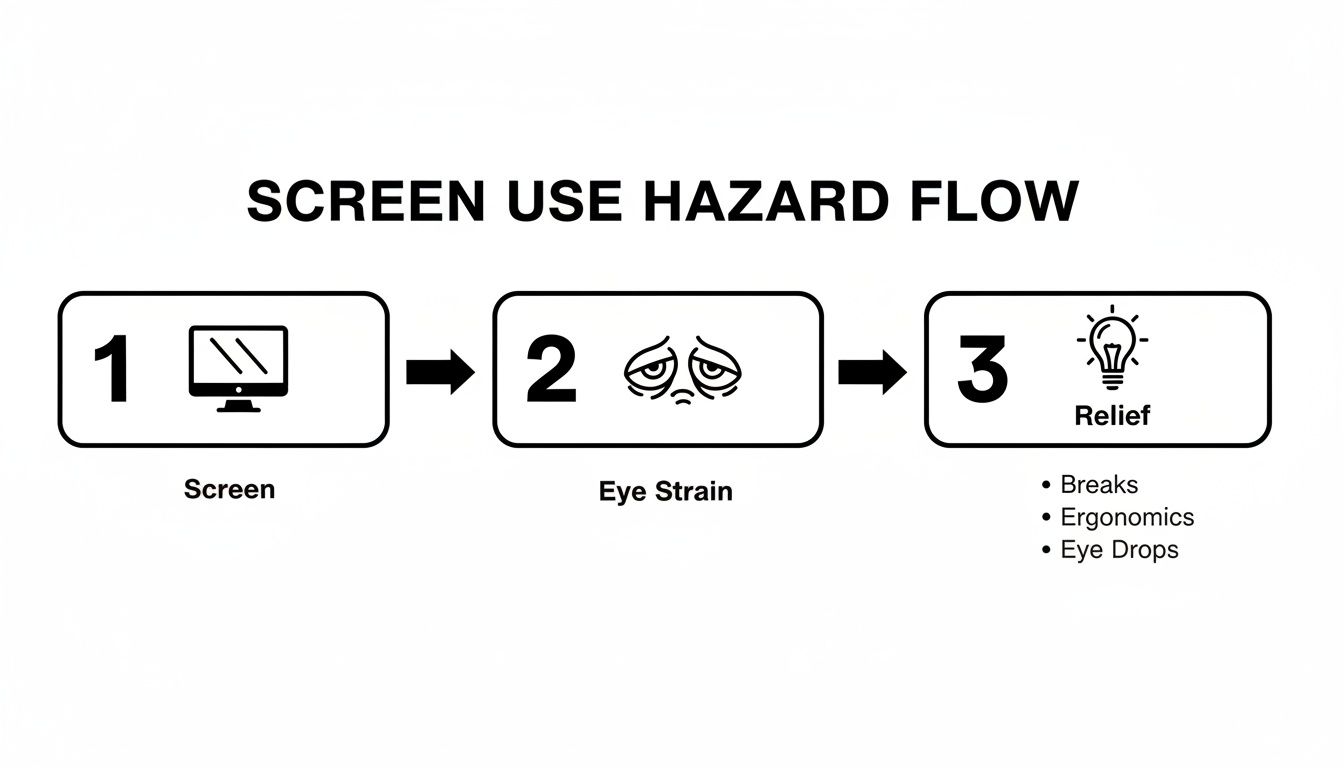
As you can see, it’s a straightforward problem with clear solutions. Consistent screen use can easily lead to physical strain, but a few smart ergonomic adjustments can make all the difference.
Taming Dual and Ultrawide Monitors
Setting up a single monitor is one thing, but things get more complicated when you add more screen real estate. Just slapping two monitors side-by-side is a recipe for neck pain, as it forces you to constantly swivel your head back and forth.
If you're running a dual-monitor setup, first figure out which screen is your "primary." This is the one you look at for 70-80% of your workday. Center that monitor directly in front of you, using the arm's-length and eye-level rules we just covered. Then, place your secondary monitor off to the side, angled slightly inward toward you. This creates a gentle "cockpit" curve that lets you glance at the second screen with just your eyes, not your whole head.
Ultrawide monitors are a similar beast. They’re great for eliminating that annoying bezel in the middle, but their sheer size can tempt you to push important windows way off to the sides. Fight that urge. Keep your main application front and center, and relegate the peripheral space to secondary things like chat apps, reference documents, or toolbars you don't need to stare at constantly.
To make this all a bit easier to remember, here's a quick checklist.
Ergonomic Monitor Positioning Checklist
This table is a great little cheat sheet to run through whenever you're setting up a new desk or just want to double-check your current arrangement for eye comfort.
| Ergonomic Factor | Ideal Placement Guideline | Why It Matters for Eye Strain |
|---|---|---|
| Monitor Distance | Sit back and extend your arm; your fingertips should just touch the screen. | Prevents your eyes from over-focusing at close range, a major cause of fatigue. |
| Monitor Height | The top edge of the screen should be at or slightly below your eye level. | Encourages a natural, slight downward gaze, which relaxes your neck and eye muscles. |
| Screen Angle/Tilt | Tilt the screen slightly upward (10-20 degrees) to be perpendicular to your line of sight. | Reduces glare from overhead lighting and ensures the entire screen is in focus without you needing to adjust your posture. |
| Primary Monitor | Your main screen should be positioned directly in front of you. | Minimizes constant head and neck twisting, which leads to both eye strain and muscle soreness. |
| Secondary Monitor(s) | Place to the side of the primary monitor, angled slightly inward in a gentle curve. | Allows you to view secondary information with minimal head movement, reducing fatigue over the day. |
Following these guidelines will put you well on your way to a more comfortable and productive workspace.
The Power of a Monitor Arm
Let's be honest—the stands that come with most monitors are pretty limited. You might get a little bit of tilt or a couple of inches of height adjustment if you're lucky. They rarely give you the fine-tuned control needed for a truly ergonomic position. This is where a good monitor arm stops being a nice-to-have and becomes a game-changer.
A monitor arm gives you total control over your screen's position.
- Height: Instantly slide the monitor up or down to match your eye level perfectly, whether you're sitting up straight or leaning back.
- Depth: Pull the screen closer when you're working on something detailed, then push it away to free up desk space.
- Angle: Effortlessly tilt the screen to kill any annoying glare from a window or overhead light. This alone is a huge win for your eyes.
A monitor arm fundamentally changes your relationship with your screen. It makes the display work for you, adapting to your needs throughout the day, rather than forcing you to adapt to its fixed position.
Those tiny micro-adjustments are what separate an okay setup from a great one, and they often make the difference between ending the day feeling fresh or fighting off a headache.
If you're trying to wrangle more than one screen, finding the right hardware is crucial. We've put together a full guide on the best monitor arms for dual monitors that can help you find the perfect fit. Think of it as an investment in your daily comfort and long-term health.
Fine-Tune Your Display Settings for Better Readability
What you see on the screen is just as important as where your monitor is sitting. Dialing in a few key digital settings is one of the fastest ways to get some immediate relief from screen-related eye strain. Think of these settings as the final, crucial piece of the ergonomic puzzle.
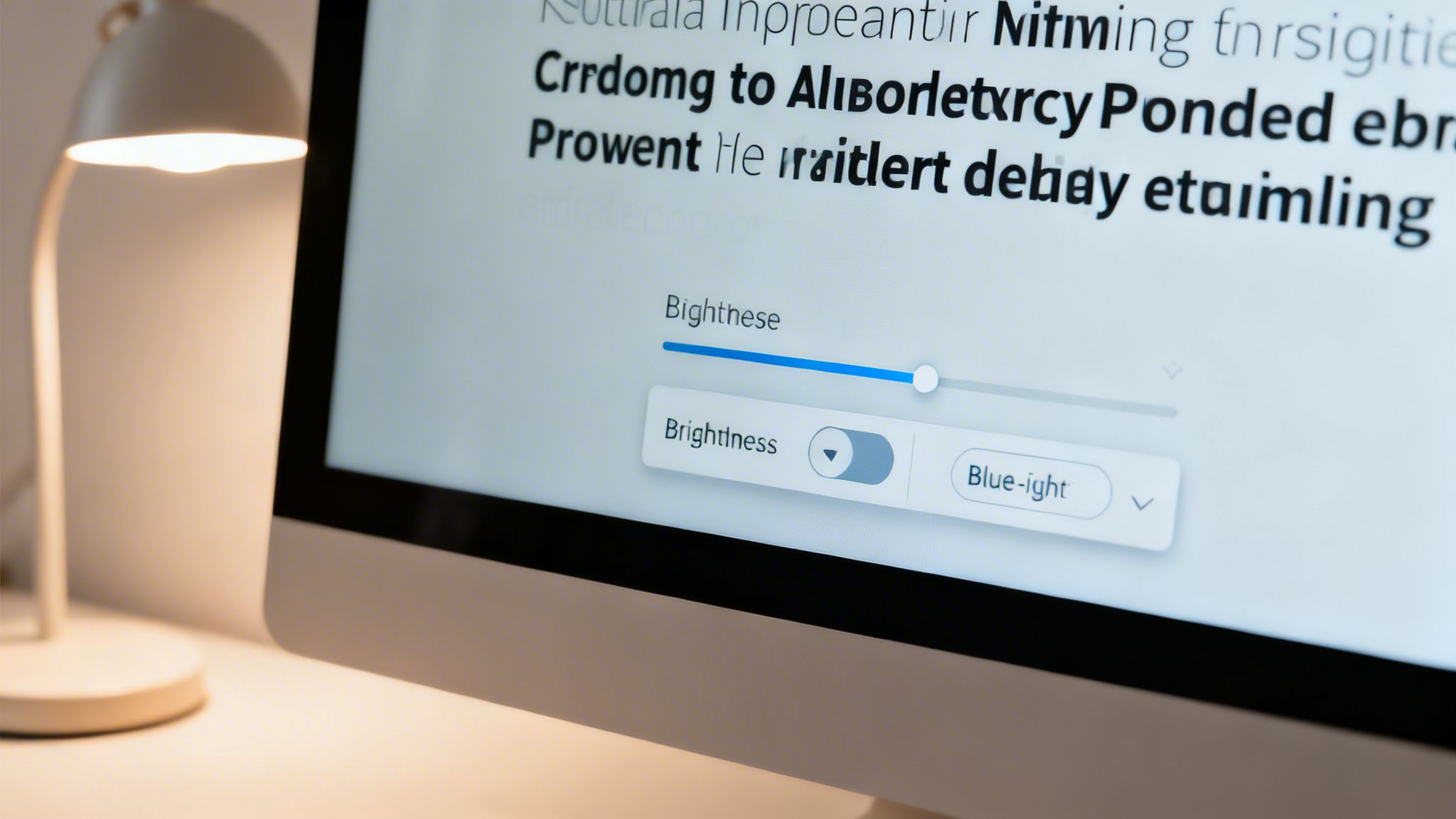
Let's start with brightness. A lot of people crank their monitor’s brightness all the way up, assuming it makes things clearer. But in reality, your screen should be more like a chameleon than a spotlight; it needs to blend in with the light in your room.
Here's a simple test I use: pull up a blank white document. If it feels like you're staring into a desk lamp, it’s way too bright. On the flip side, if it looks dull and gray, it’s too dark. Getting this balance right drastically cuts down on the visual noise your eyes have to filter all day.
Make Text and Contrast Work for You
Are you leaning in or squinting at your screen? That’s a dead giveaway that your text is too small. Don't just put up with it—fix it. Modern operating systems give you plenty of control to bump up the text size across the board, without making all your icons look ridiculously huge.
-
For Windows users: Head to
Settings > Accessibility > Text size. You'll find a simple slider to adjust the text to a comfortable level. -
On a Mac: Open
System Settings > Displays > Advanced. Here you can scale the resolution to a setting like "Larger Text."
Boosting the contrast also works wonders. It makes text stand out from the background, giving your eyes a much easier time distinguishing words. Check out the high-contrast modes in your accessibility settings. The whole point is to make reading feel effortless, not like a constant workout for your eyes.
"Reduce eye strain in low-light conditions, making it easier to use devices for an extended period... [This can] improve accessibility for individuals with light sensitivity and reduce screen flickering, potentially increasing focus."
This really drives home how a few tweaks can completely change your experience, especially if you're working in a room that isn't perfectly lit.
Get Friendly with Dark Mode and Blue Light Filters
The light-text-on-dark-background debate isn't going away, but there's no denying that for many people, Dark Mode is a game-changer for reducing glare and fatigue. I find it’s most helpful in the evening or in dimmer rooms, as it drastically cuts the amount of bright light blasting at your face. Even data-heavy apps like Microsoft Excel now have a proper dark mode, which is a blessing for anyone staring at spreadsheets for hours.
But it's not just about light and dark; the color of that light matters, too. Screens are notorious for emitting high-energy blue light, which can mess with your sleep and contribute to that gritty-eyed feeling. Your best defense is a built-in blue light filter.
- Night Shift is what Apple calls it on macOS and iOS.
- Night Light is the equivalent feature on Windows.
- Power users often swear by third-party apps like f.lux for more granular control.
These tools work by automatically warming up your screen’s color temperature as the day goes on, especially after sunset. It makes for a much softer, less stimulating glow that can make all the difference during those late-night work sessions.
Conquer Workspace Lighting and Screen Glare
Your physical workspace has a huge impact on how hard your eyes have to work. The number one enemy here is almost always glare—that annoying reflection on your screen that makes your eyes constantly fight to focus. It's a sneaky cause of fatigue that builds up throughout the day.
More often than not, the source is a bright window right behind you or some harsh overhead lighting. These create a high-contrast reflection that your eyes have to peer through, which is incredibly taxing.
Strategically Position Your Workspace
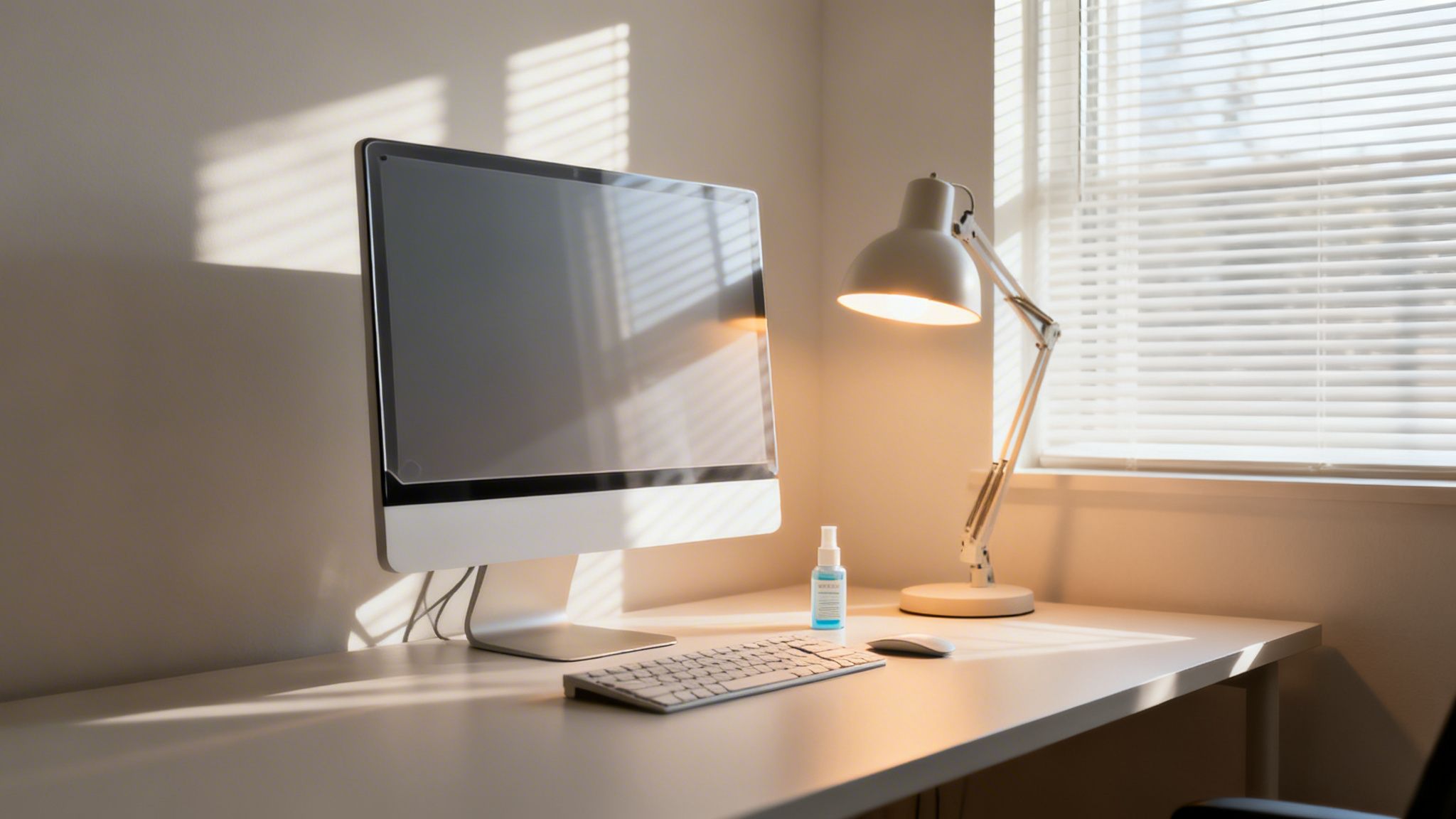
Luckily, you can often solve this with smart placement, not expensive gadgets. Try to set up your desk so that bright windows are to your side, rather than directly in front of or behind your monitor. This simple shift can cut out the worst of the direct glare.
If you can't move your desk, use blinds or curtains to soften that intense sunlight. You're aiming for soft, ambient light, not a spotlight that creates sharp, distracting reflections.
I’ve found that using a good desk lamp for focused light is far more comfortable than relying on a harsh overhead fixture. It lights up what I need to see without washing out the room, which really helps keep those screen reflections down.
Eliminate Reflections Directly on Your Screen
Even in a well-lit room, you might still catch a reflection on your monitor. This is where a few direct tweaks can make a world of difference.
- Try a Subtle Tilt: Sometimes, all it takes is tilting your monitor down a few degrees to bounce reflections away from your eyes. It's a free fix that's surprisingly effective.
- Invest in an Anti-Glare Protector: If tilting doesn't cut it, an anti-glare screen protector is a great investment. These have a matte finish that scatters reflected light, making your screen much easier to see.
- Watch What You Wear: This sounds a bit odd, but a bright white shirt can actually create a faint but noticeable reflection. Choosing darker clothing can help minimize this subtle distraction.
The goal is to make your screen as effortless to view as possible. Every little reflection you get rid of is one less thing your eyes have to process, saving a ton of visual energy over the course of a workday.
Don't Underestimate a Clean Screen
Finally, let’s talk about one of the most overlooked factors: a clean screen. A layer of dust, smudges, and fingerprints creates a haze that blurs the text and images on your display.
This forces the tiny muscles in your eyes to work overtime just to focus properly, directly contributing to strain. Making a quick wipe-down part of your routine is a small habit that pays off big. If you want to do it right without causing any damage, it helps to know how to clean a monitor screen properly. A good microfiber cloth and the right cleaner will give you a streak-free view that lets your eyes relax and focus where they should.
Build Sustainable Habits for Healthy Eyes
Even if you’ve nailed your monitor setup and perfected your room lighting, your eyes still need a break. It's easy to forget, but the tiny focusing muscles in your eyes are just like any other muscle in your body—they get tired when you hold them in one position for too long. That’s why building small, consistent habits into your day is the real secret to keeping that fatigue from escalating into a full-blown headache.
You’ve probably heard of the 20-20-20 rule. It’s popular for a reason: it works. The idea is simple: every 20 minutes, you shift your focus to something at least 20 feet away and hold it there for a solid 20 seconds. This little reset forces the ciliary muscle in your eye to relax from that constant near-focus state, giving you immediate relief and fighting off long-term strain.
Making Breaks a Reflex, Not a Chore
Knowing you should take a break and actually remembering to do it are two very different things, especially when you're deep in thought. The trick is to stop relying on willpower and use a few simple cues instead.
- Set a physical timer: Grab a cheap kitchen timer or use your phone, but put it just far enough away that you have to stand up to turn it off. That tiny bit of movement makes the break more effective.
- Let an app do the nagging: Browser extensions like EyeCare or Break Timer are great for this. They can pop up a gentle, non-intrusive reminder so you don't have to watch the clock yourself.
- Tie breaks to your tasks: A great way to build the habit is to link it to something you already do. Just finished a report? Look out the window. Fired off a long email? Get up and stretch.
Another thing we all forget to do is blink consciously. When we’re locked onto a screen, our blink rate can plummet by more than 50%. This is a major cause of that dry, gritty feeling. Make a mental note to blink fully and often, especially when you’re concentrating hard. It’s the simplest way to keep your eyes naturally lubricated.
Beyond the 20-20-20 Rule
These habits aren’t just nice-to-haves; they’re becoming essential. Screen time is a modern occupational hazard, and the numbers are staggering. In countries like South Africa and the Philippines, professionals are looking at screens for over 9 hours a day. When you're dealing with that level of exposure, these proactive habits are absolutely non-negotiable.
Think of these little exercises not as interruptions, but as tiny investments in your well-being. A 20-second break every 20 minutes adds up to just a few minutes over the entire workday, but the payoff in comfort and focus is massive.
As you build these habits, you might also consider adding tools like blue light blocking glasses to your routine for an extra layer of defense. Ultimately, lasting relief comes from combining these smart habits with a truly ergonomic setup. To make sure your whole body is aligned for comfort, take a look at our guide on maintaining the proper sitting posture at your computer.
Got Questions About Beating Eye Strain? We’ve Got Answers.
Even after you've dialed in your setup, a few specific questions always seem to come up. I get these all the time. Let's tackle some of the most common ones so you can feel totally confident in your eye-friendly workspace.
Are Blue Light Glasses Actually Worth It?
This is easily the most common question, and the answer isn't a simple yes or no. A lot of people swear by them, especially for late-night work sessions. They often report feeling less "wired" and find it easier to wind down for sleep afterward. The idea is that filtering out some of the high-energy blue light from your screen stops it from messing with your body's melatonin production—the hormone that tells your brain it's bedtime.
But here’s the thing: they aren’t a silver bullet. You can't just slap on a pair of blue light glasses and expect them to fix a screen that's blasting at full brightness in a pitch-black room.
Think of them as a helpful tool in your toolkit, not the entire solution. They work best when you’re also using a properly calibrated screen, taking regular breaks, and have good lighting.
Can All This Screen Time Cause Permanent Damage?
That’s a scary thought, isn't it? Thankfully, for most of us, digital eye strain is temporary. The headaches, blurry vision, and general discomfort are symptoms of muscle fatigue. It's really no different than how your legs would feel after a long hike—they're just tired. Once you give your eyes a proper rest, the symptoms should fade.
That being said, ignoring chronic eye strain is a bad idea. It can make existing eye conditions feel worse and absolutely torpedo your productivity and mood. So, treating it is less about preventing permanent damage and more about maintaining your day-to-day focus and well-being.
Eye strain might not cause lasting harm, but it's a loud and clear warning sign from your body. It's telling you something in your environment or your habits is off, and it's time to listen.
Do Things Like Screen Resolution or Refresh Rate Really Matter?
They absolutely do, but maybe not for the reasons you'd expect. It’s all about making your eyes work less.
A high-resolution display, like a 4K monitor, creates incredibly sharp text and images. When letters and icons are crisp, your eye muscles don’t have to strain to make sense of blurry edges. Over an eight-hour day, that small difference adds up to a major reduction in focusing fatigue.
Refresh rate, measured in Hertz (Hz), is about smoothness. It’s how many times the image on your screen is redrawn every second. A higher refresh rate—say, 120Hz instead of the standard 60Hz—results in smoother scrolling and mouse movement. This helps eliminate subtle screen flicker that you might not consciously notice but can still irritate your eyes over time.
Is It Better to Use One Big Monitor or Two Smaller Ones?
This really boils down to your personal workflow, but ergonomically, the goal is always the same: move your head and neck as little as possible.
-
One ultrawide monitor is fantastic for an uninterrupted view. There's no bezel in the middle breaking up your workspace. The pro tip here is to keep your main task centered directly in front of you and relegate secondary apps, like email or chat, to the peripheral sides.
-
A dual-monitor setup is still a great option if you arrange it correctly. The key is to designate a "primary" screen and place it straight ahead. The second monitor should be off to the side, angled slightly inward toward you. This setup prevents that constant side-to-side head-turning—the "tennis match" effect—that’s a classic recipe for neck pain.
Ultimately, there's no single right answer. The best setup is whichever one lets you see everything you need with the least amount of physical effort.
Ready to build a workspace that’s truly comfortable and clutter-free? The EVEO collection of monitor arms, screen cleaners, and cable management solutions gives you total control over your setup. You can finally work without the nagging strain and distraction. Explore our solutions and build your ideal setup today.
Finding Your Ideal Standing Desk Height for Peak Performance
How to Organize Charging Cables for a Clutter-Free Life