

That nagging ache in your back and the stiffness in your neck aren't just signs of a long day. They’re often a direct result of how you're sitting right now.
Most of us have desk setups that actively work against our bodies, forcing us into positions that can lead to chronic pain and kill our focus. Fixing your proper sitting posture at computer isn't about holding a rigid, unnatural pose; it's about understanding what your body needs and setting up your workspace to support it.
Why Your Current Desk Setup Is Causing You Pain
Let's be real—most of us treat our workspace as an afterthought. We twist and contort our bodies to fit the desk, not the other way around.
This usually means hunching over a keyboard, craning our necks to see a poorly positioned monitor, and slouching in a chair that offers zero real support. Over time, these small, seemingly harmless habits add up to create some serious physical problems.
The real issue is the constant, losing battle against gravity. When you slouch, your head naturally drifts forward. For every inch it moves, it adds about 10 pounds of pressure to your spine. That misalignment is a huge driver of "tech neck" and that all-too-familiar tension in your shoulders.
The Link Between Poor Posture and Chronic Pain
The connection is surprisingly direct. To really get why your setup matters so much, it helps to understand how poor posture contributes to back pain, as it’s often the first thing to flare up from ergonomic mistakes. Slouching and hunching put a continuous strain on your spine, leading to misalignments and imbalances that shout back in the form of discomfort.
And this isn't some rare issue. It's the daily reality for a staggering 80% of office workers in the U.S. who spend most of their days sitting down. The shift to remote work has only made this worse, with many of us parked in a chair from morning to night.
The goal isn't to sit like a statue. It's to create a 'neutral spine'—a natural alignment where your head, shoulders, and hips are stacked, taking the stress off your muscles and ligaments.
Finding this neutral posture is the key to unlocking a pain-free workday. It lets your body function the way it's supposed to, without the constant strain that drains your energy and tanks your productivity. As you start to build a desk setup that works for you, remember you're not just organizing your desk; you're making a long-term investment in your own health.
Building Your Ergonomic Foundation From the Ground Up
Think of your office chair as the command center for your entire workspace. Seriously. If it’s not set up correctly, everything else gets thrown off balance, forcing your body into awkward, strained positions just to get through the day. Nailing your sitting posture starts right here, with a few quick adjustments that can make a world of difference almost immediately.
First things first, let's tackle your chair height. The goal is simple: get your feet resting flat on the floor with your knees bent at roughly a 90-degree angle. Your thighs should be parallel to the ground or even slope down just a tiny bit. If your feet are dangling, you’re putting a ton of unnecessary pressure on your lower back.
Next up is the seat depth. You should be able to sit with your back flush against the backrest while leaving about two to three fingers' worth of space between the edge of the seat and the back of your knees. This little gap is crucial—it prevents the seat from cutting off your circulation.
Dialing in Your Support System
Now, let's talk about the backrest. Its job is to support the natural S-curve of your spine, especially your lower back (the lumbar region). Most ergonomic chairs have an adjustable lumbar support; slide it up or down so it fits snugly into the small of your back. This one tweak is a game-changer for preventing that dreaded afternoon slouch.
While the old "90-90-90" rule (hips, knees, and ankles all at 90-degree angles) is a decent starting point, it's not the final word. Some research actually shows that a slightly reclined posture of about 100-110 degrees can reduce pressure on your spinal discs. So go ahead, lean back a little. Just make sure your lumbar support stays engaged and your feet stay flat on the floor.
It's amazing how quickly small issues like hunching can cascade into much bigger problems.
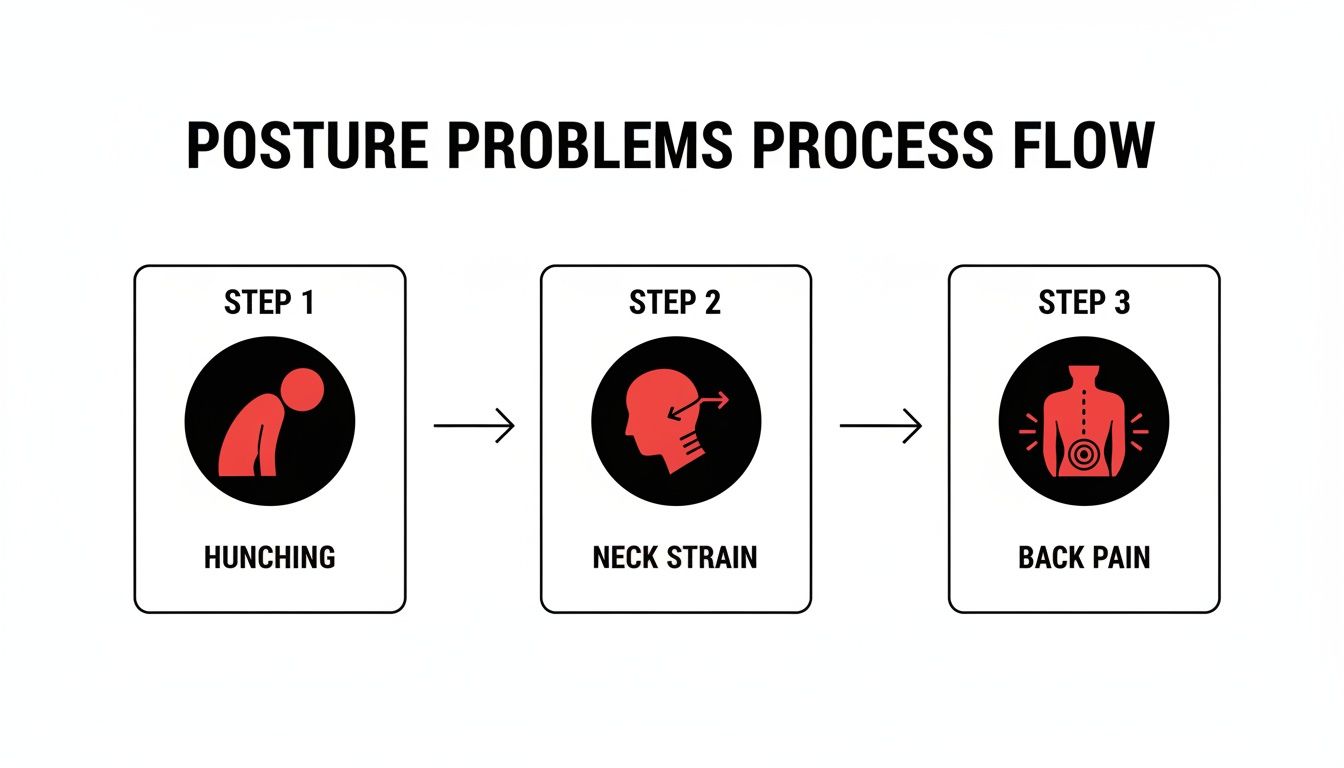
You can see the domino effect pretty clearly—poor habits compound, turning minor discomfort into chronic pain over time.
Positioning Your Feet and Legs
So what happens if your desk is too high, and getting your chair to the right height leaves your feet dangling? It's a super common problem with a simple fix: a footrest. A dedicated footrest gives you that stable base you need to keep your legs and hips properly aligned. In a pinch, a stack of sturdy books or a yoga block works too.
Make sure your legs have some room to move. Try not to cross them for long periods, as that can restrict blood flow. Keeping the area under your desk clear of clutter is an underrated tip that allows for those natural shifts in position that your body needs throughout the day.
To truly build an ergonomic foundation, understanding and improving your body's natural alignment is key. Discover how movement practices like Pilates and Posture can help realign your spine and dramatically improve your posture.
Ultimately, your chair setup is all about creating a supportive, neutral position that feels natural, not rigid or forced. The goal is to let the chair do the heavy lifting of supporting your body, so your muscles don't have to. These foundational adjustments are your first line of defense against the pain and fatigue that come from a poorly set-up workspace.
How to Position Your Monitor for a Strain-Free Neck
If you find yourself constantly rubbing your neck and shoulders by mid-afternoon, your monitor is almost certainly the prime suspect. That nagging "tech neck" isn't just an annoyance—it's the direct result of your head being pulled out of its natural alignment, adding serious strain to your spine.
Luckily, fixing this is one of the most powerful ergonomic adjustments you can make. The core principle is simple: bring the screen to your eyes, not the other way around.
Your goal is to position the top edge of your screen at or just below your natural eye level. This simple change encourages a neutral neck posture where your ears stay aligned directly over your shoulders. It stops you from craning your neck down or jutting your chin forward—two habits that lead directly to pain.
Distance is just as important. The easiest way to check this is the "arm's length test." Sit back comfortably in your chair, extend your arm straight out, and your fingertips should just about touch the screen. This distance, usually around 20-30 inches, is the sweet spot for preventing both neck strain and eye fatigue.

Taming Dual and Ultrawide Setups
Of course, modern workspaces are rarely just one screen. Dual monitors and ultrawide displays introduce new ergonomic challenges, and just placing them side-by-side is a recipe for neck pain. The trick is to arrange them based on how you actually work.
-
For a primary/secondary setup: Put your main monitor directly in front of you, following the eye-level and arm's-length rules. Your secondary monitor goes off to the side, angled slightly inward to create a gentle curve. This dramatically reduces how far you need to turn your head.
-
For equally used monitors: If you split your time 50/50 between screens, place them together so their inner edges meet right at your body's centerline. You'll sit centered on that meeting point, allowing for small, comfortable head turns to the left and right instead of one large, repetitive movement.
-
For ultrawide monitors: The same height and distance rules apply, but you need to think about the width. Center the monitor directly in front of you and treat the middle two-thirds of the screen as your primary workspace. The far edges become peripheral zones for less-used apps.
To make this easier, here’s a quick reference for dialing in your setup.
Monitor Positioning Quick Guide
| Monitor Type | Ideal Height | Ideal Distance | Positioning Tip |
|---|---|---|---|
| Single Monitor | Top edge at or just below eye level. | Arm's length away (20-30 inches). | Center it directly in front of you. |
| Dual Monitors | Both monitors at the same height. | Arm's length away. | Main screen centered; secondary angled beside it. If used equally, center the bezels. |
| Ultrawide Monitor | Top edge at or just below eye level. | Arm's length away. | Center the monitor; keep primary windows in the middle two-thirds of the screen. |
This table serves as a great starting point, but remember to make small adjustments that feel best for your body and workflow.
The Power of Precision with a Monitor Arm
Let's be honest: the flimsy stands that come with most monitors offer very little adjustment, often forcing you to compromise your posture. Stacking books under your monitor is a temporary fix, not a real solution.
This is where a monitor arm becomes an essential tool for achieving perfect proper sitting posture at computer.
A monitor arm gives you complete control over your screen's height, depth, and angle. This precision is crucial for keeping your head in a neutral position, directly preventing the forward-head posture that causes so much neck and shoulder pain.
Instead of settling for "good enough," an arm lets you make micro-adjustments with a light touch. It allows you to adapt your screen to your body, not force your body to adapt to the screen. For anyone serious about creating a comfortable and productive workspace, it's a non-negotiable upgrade.
If you're ready to make the switch, our guide on how to choose the right monitor mount for your workspace can help you find the perfect fit.
Arranging Your Desk for Effortless Reach and Focus
You've got your chair and monitor dialed in, which is a fantastic start. But what about everything else on your desk? A well-organized workspace is the unsung hero of good posture, preventing all that unconscious reaching and stretching that leads to strain. It's all about creating an "interaction zone" where your most-used tools are always within easy grasp.
Think of your desk in two zones. The primary zone is the sweet spot directly in front of you, home to your keyboard and mouse. Everything else lives in the secondary zone. Keeping this distinction clear is a simple trick that drastically cuts down on unnecessary, posture-wrecking movements.

Optimizing Your Keyboard and Mouse Position
The placement of your keyboard and mouse has a direct impact on the health of your wrists, elbows, and shoulders. The goal here is simple: keep your arms in a relaxed, neutral position. That makes getting this part right non-negotiable.
Your keyboard should be right in front of you, close enough that your elbows can hang comfortably by your sides, bent at a natural 90 to 110-degree angle. Check your wrists—they should be straight, not bent up, down, or sideways. If you notice your wrists arching upwards, you might need a keyboard tray or a desk that sits a bit lower.
Your mouse should live right next to your keyboard, on the exact same level. Reaching too far for it is a classic recipe for shoulder and neck tension. Keep it close enough that you can move it with your whole arm instead of just flicking your wrist.
A common mistake I see all the time is placing the keyboard too far back, forcing you to extend your arms and hunch forward. It seems small, but that one error pulls your entire upper body out of alignment, undoing all the hard work you just put into setting up your chair and monitor.
Creating a Clutter-Free Ergonomic Zone
A messy desk is more than just a distraction; it's an ergonomic hazard. When your workspace is covered in papers, gadgets, and coffee mugs, you're forced to constantly reach over and around them. Each one of those tiny stretches pulls your spine out of its neutral alignment, contributing to micro-strains that build up all day long.
Getting your desk organized is a surprisingly effective way to protect your posture.
- Keep essentials close: Your phone, notepad, and pen should be within arm's reach without you having to lean or stretch.
- Move non-essentials away: Things you only use occasionally belong in drawers or on shelves, not taking up prime real estate on your desk.
- Manage your cables: Tangled wires are the worst. They can limit where you place your equipment and create a messy, stressful vibe. A clean setup is a productive one.
If you're ready to take your desk organization to the next level, our guide on under-desk cable management has some seriously practical solutions. Taming that cable chaos not only looks a hundred times better but also makes your workspace safer and more functional.
The Critical Role of Lighting
Finally, let's talk about lighting. It's easy to overlook, but poor lighting forces you to squint and lean forward to see your screen, which directly kills your posture.
Ideally, you want your main light source (like a window) to be to the side of your desk, not directly in front of or behind your screen. This simple change dramatically reduces glare, a major cause of eye strain.
Add a good desk lamp for focused task lighting to complement the room's ambient light. This balanced approach keeps your eyes comfortable, allowing your body to stay relaxed and in a proper, supported posture all day.
Beyond the Setup: Embracing Active Sitting and Smart Breaks
Nailing your ergonomic setup is a huge win, but achieving sustainable, proper sitting posture at computer isn’t a one-and-done task. Let's be real: the human body was designed for movement, not for holding a static pose for eight hours straight. True, long-term ergonomic health comes from embracing what we call "dynamic sitting" and building smart habits that push back against the stillness of desk work.
Static posture is the enemy. Staying locked in one position—even a "perfect" one—restricts blood flow and puts constant stress on the same muscles and joints. The real goal is to introduce frequent, small movements throughout your day. This keeps your body engaged and prevents that all-too-familiar stiffness from setting in. It’s as simple as shifting your weight, adjusting your chair's recline, or just standing up whenever you get the chance.
Introduce Micro-Breaks and Movement
One of the most powerful habits you can build is scheduling micro-breaks. These aren’t long trips to the coffee machine; we're talking intentional pauses that last just a minute or two. A fantastic place to start is with the 20-20-20 rule. It was originally designed to combat eye strain, but it’s a great reminder for your whole body.
- Every 20 minutes, look away from your screen.
- Find an object at least 20 feet away.
- Hold your gaze on it for 20 seconds.
Use that brief pause to do a quick stretch. Roll your shoulders back and down. Gently tilt your head from side to side. Or better yet, stand up and reach for the ceiling. These tiny actions are surprisingly effective at breaking the cycle of sedentary tension before it builds up.
The Power of Standing and Stretching
Making standing a regular part of your routine is a total game-changer. A recent NIH study of office workers found that using sit-stand desks resulted in an average of 47 more minutes of daily standing. That small change boosted their overall productivity by 6.5% compared to sitting all day. You can learn more about these productivity findings here.
Even without a fancy desk, you can find opportunities to stand. Take your phone calls on your feet, or stand up during that weekly team video call.
Don't wait for pain to be your reminder to move. Be proactive. Set a simple timer on your phone to buzz every hour. When it goes off, that's your cue to get up, walk to the kitchen for water, and do a quick hamstring or hip flexor stretch.
Here are a couple of my favorite super-simple desk stretches you can do right now:
- Seated Figure-Four Stretch: Cross one ankle over your opposite knee and gently lean forward. You'll feel a great stretch in your glutes and hips, which get incredibly tight from sitting.
- Chest Opener: Clasp your hands behind your back, sit up tall, and pull your shoulder blades together. This is the perfect antidote to the slouching that creeps in when we're focused on the screen.
Building these small habits into your day transforms your approach from just passively sitting to actively engaging with your workspace. It's how you make sure your workday supports your health for the long haul.
Got Questions About Your Posture? We've Got Answers.
Even after you've tweaked your setup, a few nagging questions about sitting at a computer all day can stick around. It's easy to fall back into old habits, especially when there's so much conflicting advice out there. Let's clear the air and tackle some of the most common questions I hear.
Think of it this way: you're retraining muscles that have spent years getting comfortable with slouching. It’s a process, and it takes time to build new muscle memory.
How Long Does It Really Take to Fix Bad Posture?
You're not going to undo years of slouching overnight, but you can definitely start feeling a difference in just a few days of being mindful. For the new, correct posture to feel truly natural and automatic, though, you're probably looking at a few weeks of consistent effort.
Don't be surprised if sitting correctly feels a little weird—or even tiring—at first. That's completely normal. It just means you’re finally waking up and using muscles that have been snoozing for a while. The trick is to stick with it. Tools like a great ergonomic chair or a flexible monitor arm can really speed things up by making the right posture feel comfortable and second-nature right from the start.
The most important thing here is patience. Small, consistent adjustments throughout the day are way more effective than trying to hold a rigid, "perfect" pose for eight hours straight. Listen to what your body is telling you and adapt.
Should I Sit Bolt Upright or Is It Okay to Recline a Little?
We were all told to sit at a perfect 90-degree angle in school, but it turns out that's not the whole story. Modern ergonomic research actually shows that a slight recline—somewhere around 100-110 degrees—can take a significant amount of pressure off the discs in your spine.
Now, this isn't an invitation to slump back in your chair. The key is to maintain your spine’s natural S-curve, making sure your lower back is always making contact with your chair's lumbar support. A great ergonomic chair will let you move fluidly between a more upright posture for intense, focused work and that gentle recline for more relaxed moments.
What if My Feet Don’t Touch the Floor?
This is an incredibly common problem, especially for shorter people or anyone stuck with a desk that isn't adjustable. If your feet are dangling, your lower back is forced to pick up the slack, and your whole posture gets thrown off balance.
The easiest and most effective fix is a good footrest. It gives your feet a solid surface to rest on, which helps keep your knees at a comfortable angle and your thighs roughly parallel to the floor. If you're in a bind, a stack of old textbooks or a sturdy little box can work as a temporary stand-in until you get something more permanent.
Does a Monitor Arm Actually Make a Difference?
Oh, absolutely. If you're going to invest in one ergonomic tool, make it a monitor arm. The stands that come with most monitors are notoriously rigid, offering almost no meaningful adjustment. That forces you to adjust to the monitor, which is how we end up with that forward-head, "tech neck" posture that causes so much pain.
A good monitor arm gives you total control over the height, depth, and angle of your screen. That precision is what lets you line it up perfectly with your eye level, instantly taking the strain off your neck and shoulders. It puts you back in control, letting you adapt your screen to your body, not the other way around.
Take control of your comfort and productivity with EVEO. Our premium monitor arms provide the flexibility you need for perfect ergonomic alignment, while our cable management solutions create a clean, focused workspace. Discover the difference at EVEO.store.
Your Guide to the Best Record Cleaning Solution Homemade
Cable Management Solutions for Desk: Declutter Your Workspace Today