

Tackling that chaotic nest of wires under your desk does more than just make things look neat—it's a massive upgrade for your focus, safety, and overall sanity. Think of cable management for desk setups not as a chore, but as a strategic move to reclaim your space from the visual noise and create a workspace that actually works for you.
Why Desk Cable Management Is a Productivity Superpower
Let’s be real for a second. That tangled mess of cables isn’t just an eyesore; it’s a silent productivity killer. Each wire is a potential snag, a distraction, or a moment of frustration when you just need to unplug one simple thing. Now that so many of us have home offices, treating your workspace with a little professional respect has never been more critical.
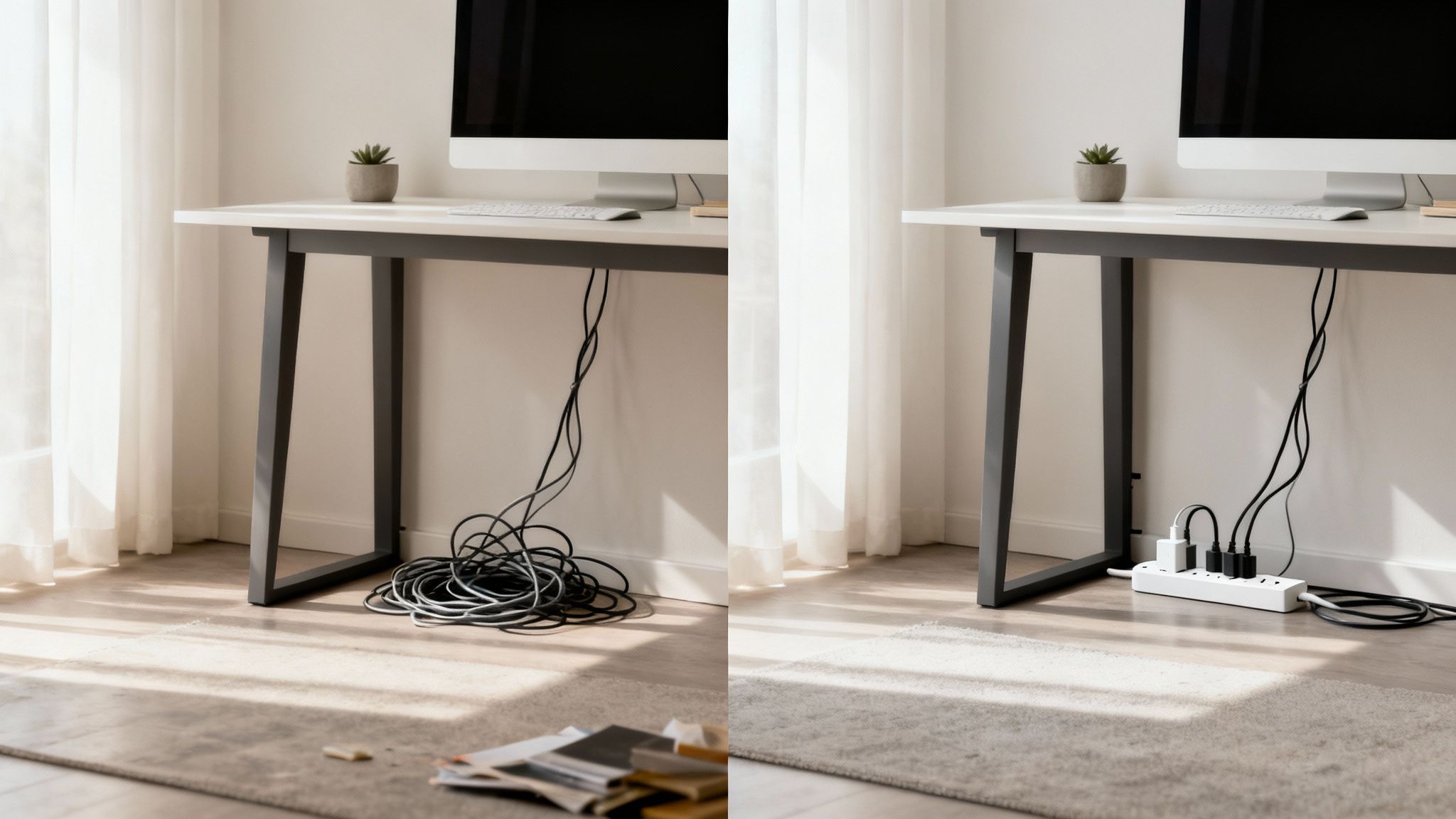
This shift to remote and hybrid work has turned cable management from a niche concern into a booming industry. In just a few years, the market for dedicated desk cable management kits has exploded into a USD 1.2 billion industry, and it's on track to hit USD 2.45 billion by 2033. That growth says one thing loud and clear: people are finally realizing that an organized desk is the bedrock of a modern, effective setup.
Beyond a Tidy Appearance
A clean setup directly impacts your daily workflow in ways you might not expect. When was the last time you needed to swap a monitor or unplug a charger? Was it a quick, two-second job, or did it involve a spelunking expedition through a web of identical black wires?
This is where the real magic happens:
- Fewer Distractions: A clean visual field clears your mind and reduces the mental load that comes from constant clutter.
- A Safer Space: Loose cables are a legitimate trip hazard, especially if you share your home office with family or pets.
- Painless Maintenance: Troubleshooting tech issues or adding new gear becomes a breeze instead of a 15-minute wrestling match.
- Better Airflow: Bundled cables stop dust bunnies from taking over and let your electronics breathe, which can help them last longer.
A well-managed desk is the foundation of an efficient workspace. It removes unnecessary friction from your day, allowing you to focus on what truly matters instead of fighting with your equipment.
Building this kind of streamlined environment is a huge part of any modern work from home office setup. By investing just a little time into getting your cables in order, you aren't just cleaning up—you're building a more productive and enjoyable command center for your professional life.
Alright, let's ditch the robotic tone and give this a proper human touch. Planning is everything when it comes to cable management, and jumping in blindly is a recipe for a tangled nightmare.
Here’s how an experienced pro would rewrite that section, matching the EVEO style.
Your Game Plan Before You Touch a Single Wire
Hold on. Before you dive in and start unplugging things, you need a plan. The single biggest mistake people make with desk cables is trying to tame the existing rat's nest on the fly. That approach is a fast track to frustration. A truly clean setup starts with a bit of strategy, turning a chore into a methodical, satisfying project.
First things first, take a quick inventory of your entire desk. Count every single thing that needs power or data—your monitors, laptop, docking station, phone charger, speakers, you name it. This gives you the full picture of what you're up against.
This planning phase is more important than ever. It's not uncommon for a modern desk to have 10–20 individual cables, and that mess can get out of hand fast. This is part of a huge trend in organizing our tech-filled lives; the wire management market is expected to hit USD 39.55 billion by 2030. Think about it: a 200-desk office could have over 2,000 cords in plain sight without a good system. You can see more on these wire management market trends if you're curious.
Map Out Your Cable Routes
With your device list ready, start visualizing where each cable needs to go. The goal is simple: find the shortest, most discreet path from point A to point B, which is usually a power strip you'll mount under the desk.
Look at your desk's layout. Are you going to run wires along the back edge? Down a monitor arm? Through a grommet hole? Grab a tape measure and check your cable lengths. Trust me, there’s nothing worse than getting halfway done and realizing a crucial power cord is six inches too short.
- For Monitors: If you have a monitor arm, that’s your golden ticket. Plan on routing the power and display cables right along the arm using its built-in clips or some simple reusable ties.
- For Peripherals: Your keyboard, mouse, and webcam cables can usually be tucked neatly along the underside of the desk with small, adhesive clips.
- For Power Bricks: We all have those bulky power adapters. The best place for these is in an under-desk cable tray. It gets them off the floor and completely out of sight.
The Unplug-and-Sort Method
Okay, now you can start disconnecting everything. Unplug every single cable from the power strip and from your devices. It will look like chaos for a minute, but this step is absolutely essential for a clean, professional-looking result.
Once it's all disconnected, group similar cables. Put all the USBs in one pile, power cords in another, and display cables (like HDMI or DisplayPort) in a third. Take a moment to untangle each one completely.
This "unplug-and-sort" approach is the most effective trick in the book for preventing future tangles. You're starting with a completely clean slate, which makes it infinitely easier to route each cable perfectly without fighting an existing knot.
By taking a few minutes to plan, you're not just tidying up. You're engineering a smarter, more functional workspace from the ground up. This little bit of strategy ensures your cable management for desk efforts will actually last.
Mastering Under-Desk Cable Hiding Techniques
Let's be honest—the space beneath your desk is ground zero for cable chaos. It's where power bricks, extension cords, and peripheral wires converge into a tangled mess that feels impossible to solve. But here’s the secret: by focusing your efforts right there, you can achieve the most dramatic transformation in your entire workspace.
This visual guide breaks down the core process for planning your attack.
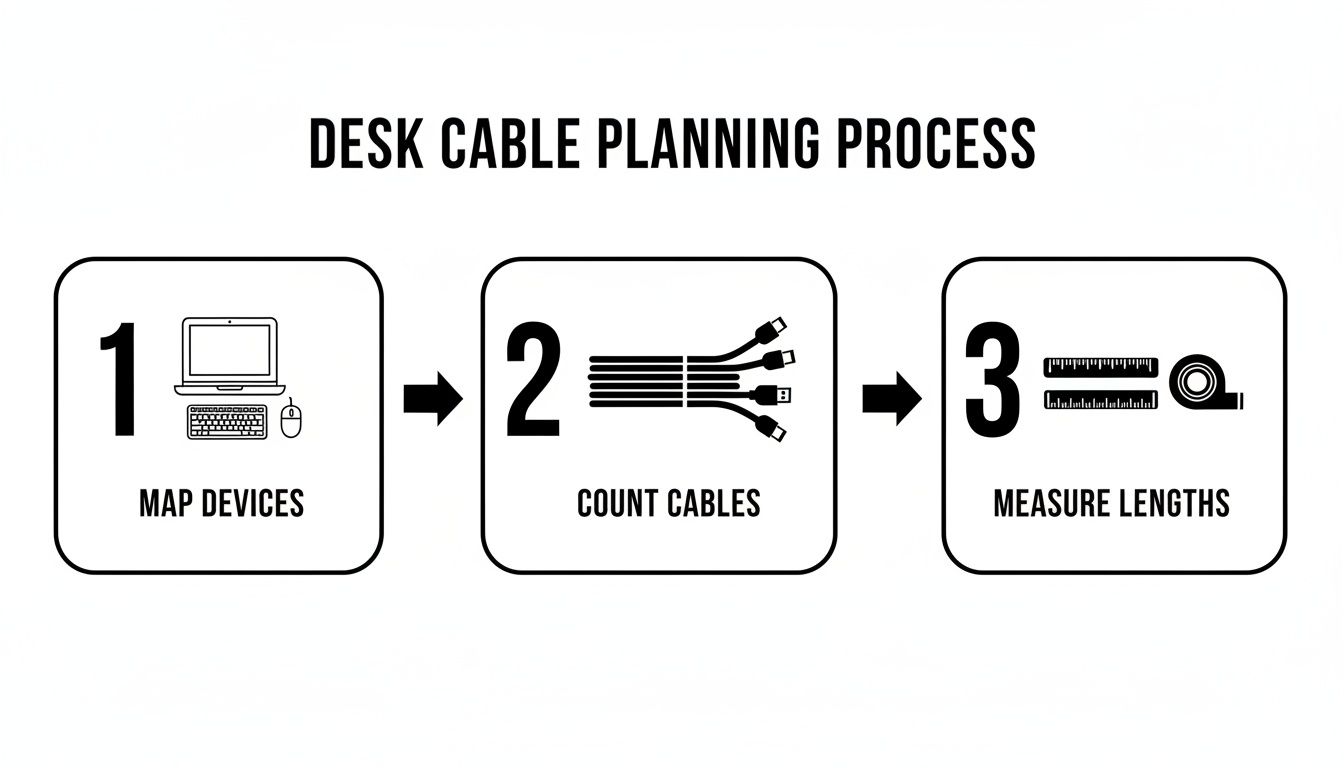
This simple three-step process—mapping devices, counting cables, and measuring lengths—is the key to preventing common mistakes and making sure you have the right tools before you start wrestling with wires.
Start with the Power Strip
Your first move, before you do anything else, should be to get that power strip off the floor. This single action eliminates a massive source of dust and visual clutter. The best spot for it is mounted directly to the underside of your desk, either tucked away at the back or centered for easy access.
Most quality power strips come with mounting holes on the back, and a couple of short screws are all you need for a rock-solid fit. If you're hesitant to drill, heavy-duty adhesive strips can work for lighter power strips, but screwing it in is always the more reliable, long-term solution.
Pro Tip: Before you drill any holes, use painter's tape to temporarily position your power strip and cable raceways. This lets you test the complete layout with everything plugged in, ensuring every cable reaches its destination without tension or pulling.
Once your power strip is mounted, plug everything in. You'll immediately have a bundle of cables hanging down, which is actually the perfect starting point for the next phase of your cable management for desk project.
Choosing Your Cable Containment System
With your wires now originating from a central, hidden point, you just need a way to contain them. The two most popular and effective solutions are cable trays and cable raceways.
-
Cable Trays: Think of these as wire baskets that screw into the underside of your desk. They are fantastic for wrangling bulky power bricks, stashing excess cable loops, and even holding the power strip itself. Their open design is great for airflow and makes adding or removing cables down the road a total breeze.
-
Cable Raceways: These are enclosed channels, often with a strong adhesive backing, that stick to the underside or back edge of your desk. They are perfect for hiding the main bundle of cables running horizontally from your power strip. For a deep dive, our complete guide on raceway cable management has more specific techniques.
For many setups, using both is the ultimate solution. A cable tray can hold the power strip and all the chunky adapters, while a raceway guides the main bundle of wires neatly along the desk's edge for a completely invisible look.
Bundling and Routing for a Flawless Finish
With your tray or raceway installed, it's time for the final routing. Loosely group the wires that will run together into the raceway. Use a few reusable velcro ties to create a neat bundle, but don't cinch them down too tight just yet.
Gently feed the bundled cables into the raceway or lay them in the tray, arranging them so nothing is kinked, strained, or twisted. Secure the raceway cover or arrange the wires neatly within the tray.
Finally, go back and snug up your velcro ties. This methodical approach is what ensures a professional, clean result that will stay organized for years to come.
Achieving a Clean Desktop and Wall Appearance
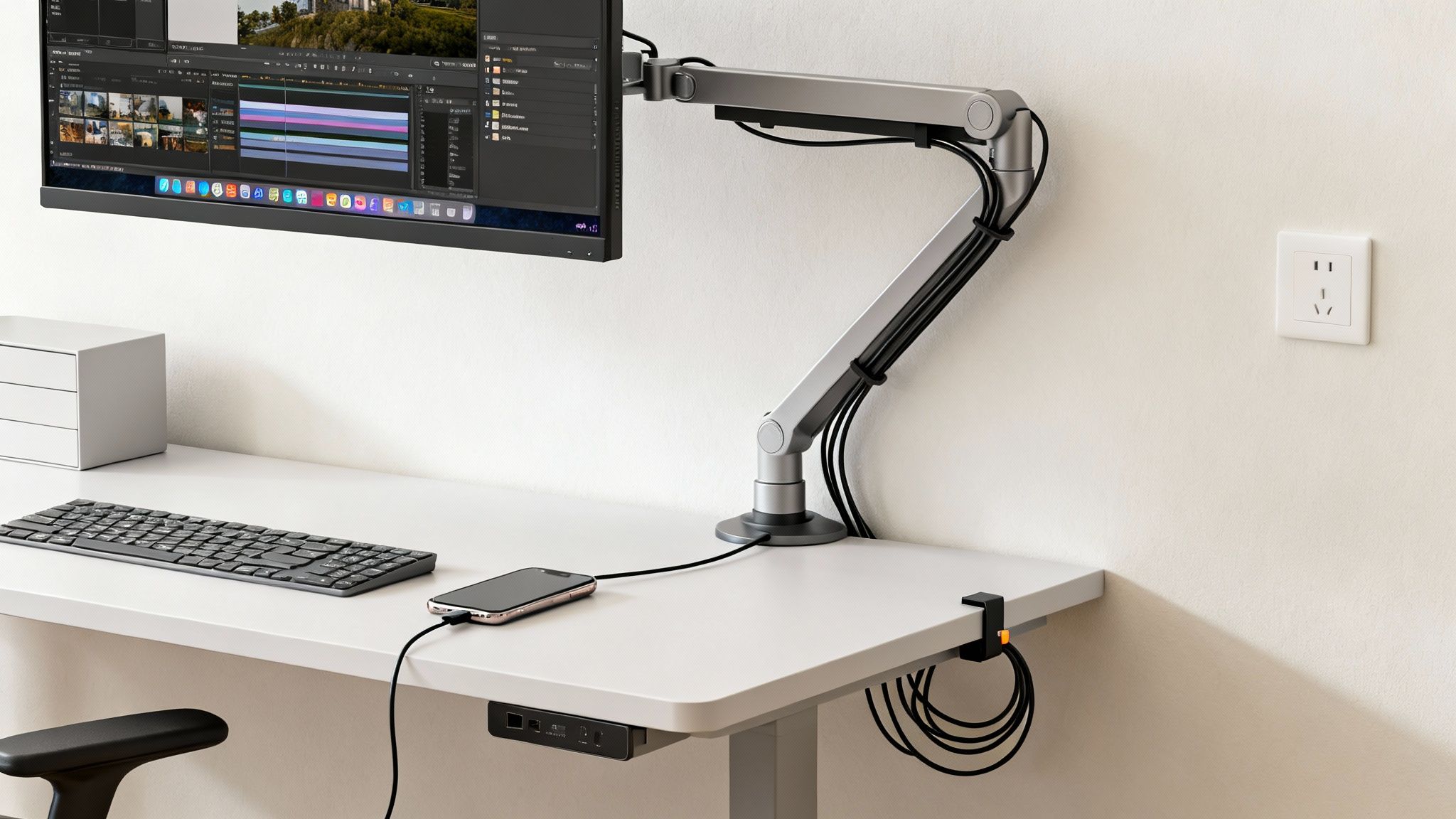
With the chaos under your desk finally wrangled, it's time to tackle the final frontier: everything you can actually see. This is where a good setup becomes a great one. Taming the wires on your desktop and the single cord running to the wall outlet creates that truly minimalist, focused vibe we're all after.
The goal here is to make any visible cables look intentional, almost like a design feature rather than a messy afterthought. This last bit of polish is what gives your monitor and peripherals that clean, "floating" look, as if everything just works wirelessly.
Create the Floating Monitor Effect
If you’ve mounted your monitor on an arm, you already have one of the best cable-hiding tools at your disposal. Most quality arms come with built-in channels or clips designed for exactly this purpose, and using them is the secret to that clean, screen-in-mid-air aesthetic.
Simply run the monitor’s power and display cables from the back of the screen and route them down the arm. Tuck them securely into the integrated channels. If your arm doesn’t have built-in management, no problem—a few reusable cable ties wrapped neatly around the arm will accomplish the same thing.
This simple trick guides the cables discreetly along the arm's structure, leading them straight to the back edge of your desk where they can drop neatly into your under-desk tray. Just like that, your monitor looks like it's hovering with no strings attached.
Concealing the Wall Connection
No matter how good your setup is, at least one cable has to make the final journey from your power strip to the wall outlet. Letting this one cord dangle freely can undo all your hard work in an instant. This is where a wall cord hider, also known as a raceway, is your best friend.
These are just slim plastic channels that stick right onto your wall or baseboard, creating a conduit that makes the cable completely disappear.
- Plan the Path: Find the straightest, least obvious line from under your desk to the outlet.
- Measure and Cut: Trim the raceway to the exact length you need for a perfect, custom fit.
- Install and Paint: Most have a simple peel-and-stick adhesive backing. For a truly professional look, you can paint the raceway the same color as your wall, making it practically invisible.
This simple addition transforms a necessary evil—the final power cord—into a clean, architectural detail. By blending the cable's path into the wall itself, you maintain the illusion of a completely wire-free workspace.
The same principles apply to hiding wires for entertainment centers. You can learn more about this approach by checking out guides on using a TV cable cord cover.
Taming Desktop Peripherals
Finally, let's deal with the small but annoying wires from things that live on your desk, like a keyboard, mouse charger, or phone cable. The secret here is all about precise routing with small, adhesive-backed cable clips.
Stick these little clips along the back edge of your desk to guide thin cables exactly where you want them to go. You can route your phone charger to a handy spot or lead your keyboard wire so it vanishes behind your monitor stand. This meticulous attention to detail ensures nothing distracts from your clean desktop, putting the final, flawless touches on your project.
The Real-World Benefits of Organizing Your Cables
Let's be honest, cleaning up the mess of cables behind your desk feels good. But the real payoff from proper cable management goes way beyond just a clean look—it brings tangible improvements to your safety, efficiency, and daily peace of mind.
Think about the last time you had to unplug a specific device from the power strip. Was it a quick swap, or did you have to spend ten minutes tracing a single black cord through a tangled nest of other identical-looking wires? A well-organized setup turns that frustrating hunt into a simple, 30-second fix. It's not just a minor win; it's about getting rid of those little daily frictions that kill your focus.
Beyond the Visuals: Safety and Productivity Gains
One of the most immediate perks is safety. A jungle of wires piled up on the floor is a genuine trip hazard, not just for you but for family, pets, or anyone walking by. Tucking those cables away in an under-desk tray or raceway instantly makes your space safer for everyone.
The boost to your productivity is just as real. A tidy system prevents those accidental unplugs that can lead to lost work or, even worse, damage your gear. When every cable has its place and is easy to identify, your attention stays on your work, not on wrestling with a tech octopus under your feet.
The Financial and Operational Case
The push for better cable management for desk setups isn't just about personal preference; it's backed by hard data. In professional IT settings, tangled and unlabeled wires can add 10–30 minutes to routine hardware checks. It’s no surprise that regions like North America and Europe, which account for about 36.9% of the global market, prioritize cable management to reduce common office hazards. You can dive deeper into the numbers in this global cable management systems report.
Before you start, it helps to see the big picture. Here’s a quick look at the practical shift you can expect.
The Tangible Impact of Cable Management
| Metric | Before Management | After Management |
|---|---|---|
| Troubleshooting Time | 10-15 minutes of tracing tangled wires | Under 1 minute to identify and swap a cable |
| Desk Space | Cluttered with loose wires and power bricks | Clear and usable surface area |
| Safety Risk | High trip hazard, potential for spills on electronics | Minimal risk with cables secured off the floor |
| Visual Stress | Constant visual clutter causing distraction | A clean, focused, and professional environment |
| Device Longevity | Higher risk of accidental unplugs and port strain | Reduced strain on cables and ports, preventing damage |
This table isn't just a set of ideals—it’s the reality for anyone who takes a little time to organize their setup. The difference is night and day.
An organized desk is an investment in your own efficiency. Every minute you don't spend fighting with cables is a minute you can put toward focused, productive work. It's a small change that delivers compounding returns over time.
This small investment of time pays off every single day. By streamlining your physical workspace, you’re creating a more functional, safer, and less stressful environment—letting you do your best work without the constant distraction of clutter.
Got Questions? Here Are a Few Quick Answers.
Even the most meticulously planned cable management project can leave you with a few head-scratchers. When you're in the middle of wrangling wires, specific challenges always seem to pop up. Here are some quick, no-nonsense answers to the questions I hear most often.
What Tools Do I Actually Need?
You can get fantastic, professional-looking results without buying a massive, expensive kit. Honestly, you only need a handful of core items to get the job done right.
I always start with a good pack of reusable velcro cable ties, an under-desk cable tray or raceway, a quality power strip that has more outlets than you think you need, and a few small adhesive cable clips for routing those skinny wires neatly across your desktop.
If you have a cable that needs to run from your desk down to a wall outlet, a simple, paintable wall cord hider is the perfect finishing touch. You can often find affordable kits online that bundle these essentials together, which is a great starting point for any setup.
How Do I Deal With Those Giant Power Bricks?
Ah, the dreaded power brick. Those heavy, awkward blocks for laptops and monitors are the number one source of under-desk chaos. The absolute best way I've found to handle them is with a wire cable tray or basket that mounts directly to the underside of your desk.
These trays are wide open, so they can hold multiple power bricks without trapping heat, keeping them completely off the floor and out of sight. For an even cleaner look, I like to use a single velcro strap to bundle any extra cord length and then gently secure the brick inside the tray so it doesn't shift around.
The goal is to give every single item a designated home. By placing bulky adapters in a dedicated tray, you instantly solve one of the most common and frustrating aspects of cable management.
Seriously, this one move will dramatically clean up the entire space under your desk and make any future changes a breeze.
My Desk Is Pushed Right Against a Wall. What's the Best Approach?
This is probably the most common setup out there, and you can absolutely still make it look clean and professional. The trick is to think vertically and use the underside of your desk to your advantage.
First, mount your power strip directly to the back or underside of the desk itself—never just leave it on the floor. From there, run an adhesive-backed cable raceway along the back edge of your desk to gather all the wires running horizontally.
For that final drop to the wall outlet, a slim cord hider is your best friend. You can stick it right to the wall without having to pull your desk out, and if you paint it to match the wall color, it practically vanishes.
Are Cable Sleeves Better Than Individual Cable Ties?
This is a great question, and the answer is: they're different tools for different jobs. A truly clean setup almost always uses a combination of both.
-
Cable Sleeves: Think of these as the major highways for your cables. They're perfect for bundling a group of wires all heading in the same direction, like the power and display cords running from your PC to your monitor. A sleeve turns that messy bundle into one clean, unified tube.
-
Reusable Cable Ties: These are for the side streets and local roads. They give you way more flexibility for securing individual cables to a monitor arm, organizing smaller groups of wires inside a cable tray, or just taming excess cord length from a single device.
My advice? Use a sleeve for the main "trunks" of your cable routes and ties for the individual "branches." This hybrid approach gives you that super clean aesthetic while keeping things flexible enough to make changes later without a headache.
Ready to transform your workspace from cluttered to clean? The EVEO collection of cable raceways, cord hiders, and ergonomic monitor arms provides everything you need to create a focused, professional, and clutter-free desk setup. Shop our complete cable management solutions today at eveo.store.
Your Ultimate Work From Home Office Setup Guide
The Ultimate Guide to Choosing and Installing a Cable Cord Hider