

A great work-from-home setup doesn't happen by accident. It starts with a clear plan that’s built around your actual daily grind. Before you even think about buying gear, you need to map out your space, design an efficient layout, and pinpoint the core equipment—like a supportive chair and the right desk—that will make or break your productivity.
Think of it as creating a blueprint for focus before you spend a dime.
Designing Your Foundational Workspace
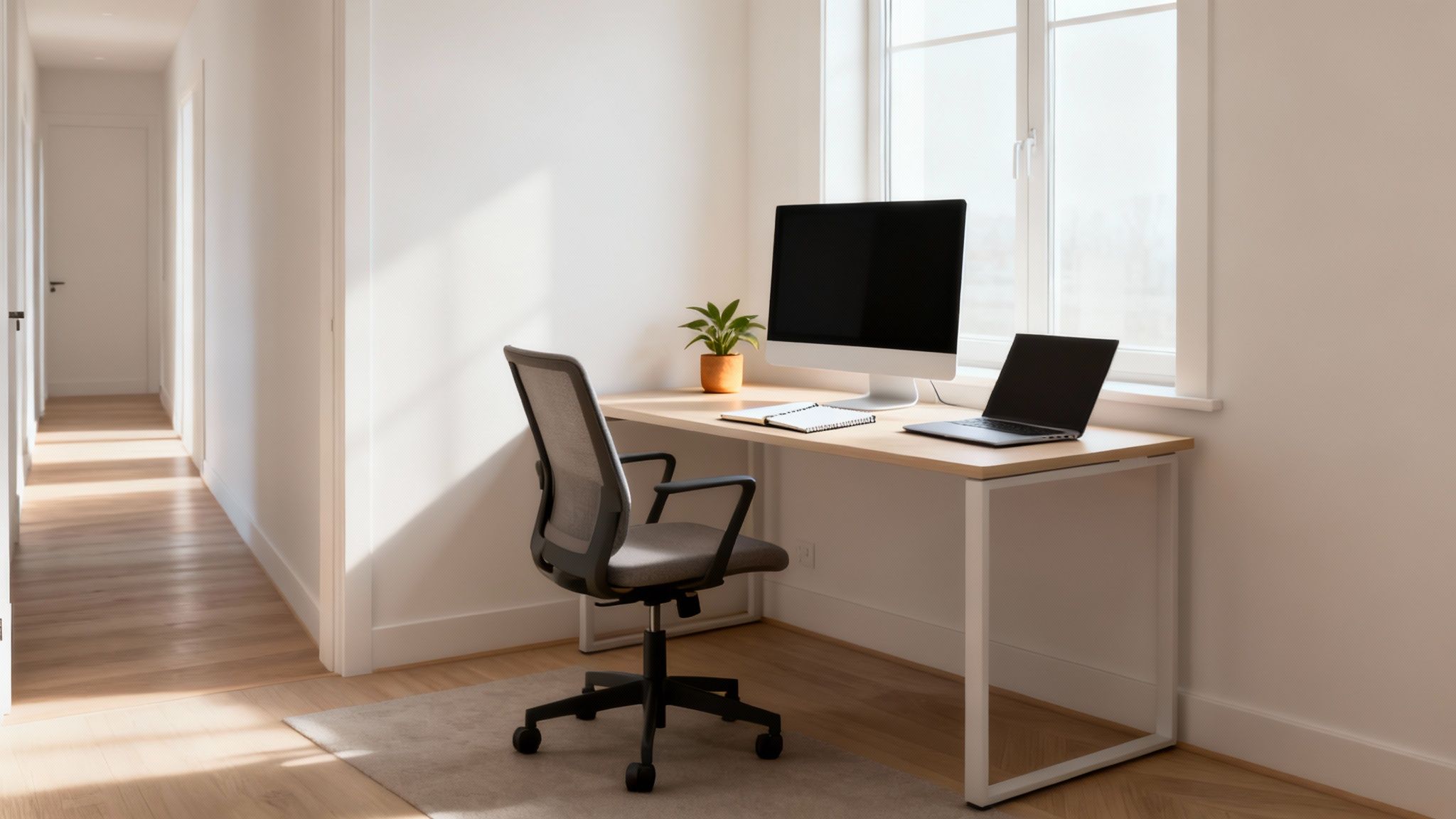
The shift to remote work wasn’t just a phase; it's here to stay. What started as a temporary fix for many has become a permanent reality, turning a dedicated home office from a luxury into a modern necessity. The numbers don't lie.
By 2025, it's estimated that 48% of the global workforce will work from home at least some of the time. That’s more than double what it was just a few years ago. This means it’s time to move past the kitchen table and thoughtfully design a space that actually supports your focus and well-being. You can learn more about the rise of remote work to see what it means for the future.
Get Real About Your Daily Workflow
First things first: what do you actually do all day? A truly effective space is built around your specific tasks, not some generic template you saw online. Different jobs have wildly different demands.
Think about which of these sounds most like you:
- The Constant Communicator: If your calendar is packed with video calls, your top priorities are a clean, professional background and great lighting. Nothing kills credibility faster than a shadowy, cluttered mess behind you.
- The Deep-Work Specialist: Are you a developer, writer, or analyst? You probably live and die by screen real estate. Your setup should revolve around a dual-monitor or ultrawide display to keep code, data, and documents visible at a glance.
- The Creative Professional: For designers and video editors, it's all about color-accurate displays and having enough desk space for your tools—drawing tablets, control surfaces, and external drives all need a home.
Knowing your primary role helps you decide where to invest your money and how to arrange your space to make your job easier, not harder.
A great home office isn't just about having the right gear; it's about having the right gear for your workflow. The goal is to remove friction between you and your work.
Select The Right Location
Where you put your office in your home is just as critical as what you put in it. The perfect spot is a balancing act between quiet isolation and comfort, cutting down on the daily distractions that can completely derail your focus.
As you scout for a location, keep these factors in mind:
- Natural Light: An office near a window can be a game-changer for mood and eye strain. Just be careful about direct glare on your screen—indirect light is your best friend.
- Noise Levels: Pay attention to the sounds in different parts of your home. A corner of the living room might seem convenient, but it’s often ground zero for noise and activity.
- Household Traffic: Pick a low-traffic area to minimize interruptions. A spare room is the dream, but even a dedicated nook in a quiet room can work wonders.
Plan Your Office Layout
Once you’ve claimed your territory, it’s time to map it out. The golden rule is to keep everything you use constantly within arm's reach. This is an old trick from professional kitchen design called the "work triangle," and it works just as well for a desk.
Your keyboard, mouse, and main monitor are the core of this zone. Things you use less often—like a notebook, your phone, or a coffee mug—should sit just outside of it. This simple habit prevents you from constantly stretching and twisting, and it keeps your desk from descending into chaos. A logical layout reduces both physical strain and mental clutter, creating a calmer, more productive environment.
To help you get started, we've put together a quick checklist to prioritize the most impactful components of your new setup.
Home Office Setup Priority Checklist
This table breaks down the core components of a home office by their impact on ergonomics, productivity, and aesthetics, so you can decide where to focus first.
| Component | Ergonomic Impact | Productivity Impact | Aesthetic Impact |
|---|---|---|---|
| Ergonomic Chair | High | High | Medium |
| Standing Desk | High | High | High |
| Monitor Arm(s) | High | High | High |
| Quality Monitor | Medium | High | Medium |
| Proper Lighting | High | Medium | Medium |
| Cable Management | Low | Medium | High |
| Quality Keyboard/Mouse | High | High | Medium |
| Personal Items | Low | Low | High |
While personal items like plants or photos have a low ergonomic impact, don't underestimate their effect on your mood and the overall feel of the space. A setup that you enjoy being in is one you'll be more productive in.
Choosing Your Core Ergonomic Equipment
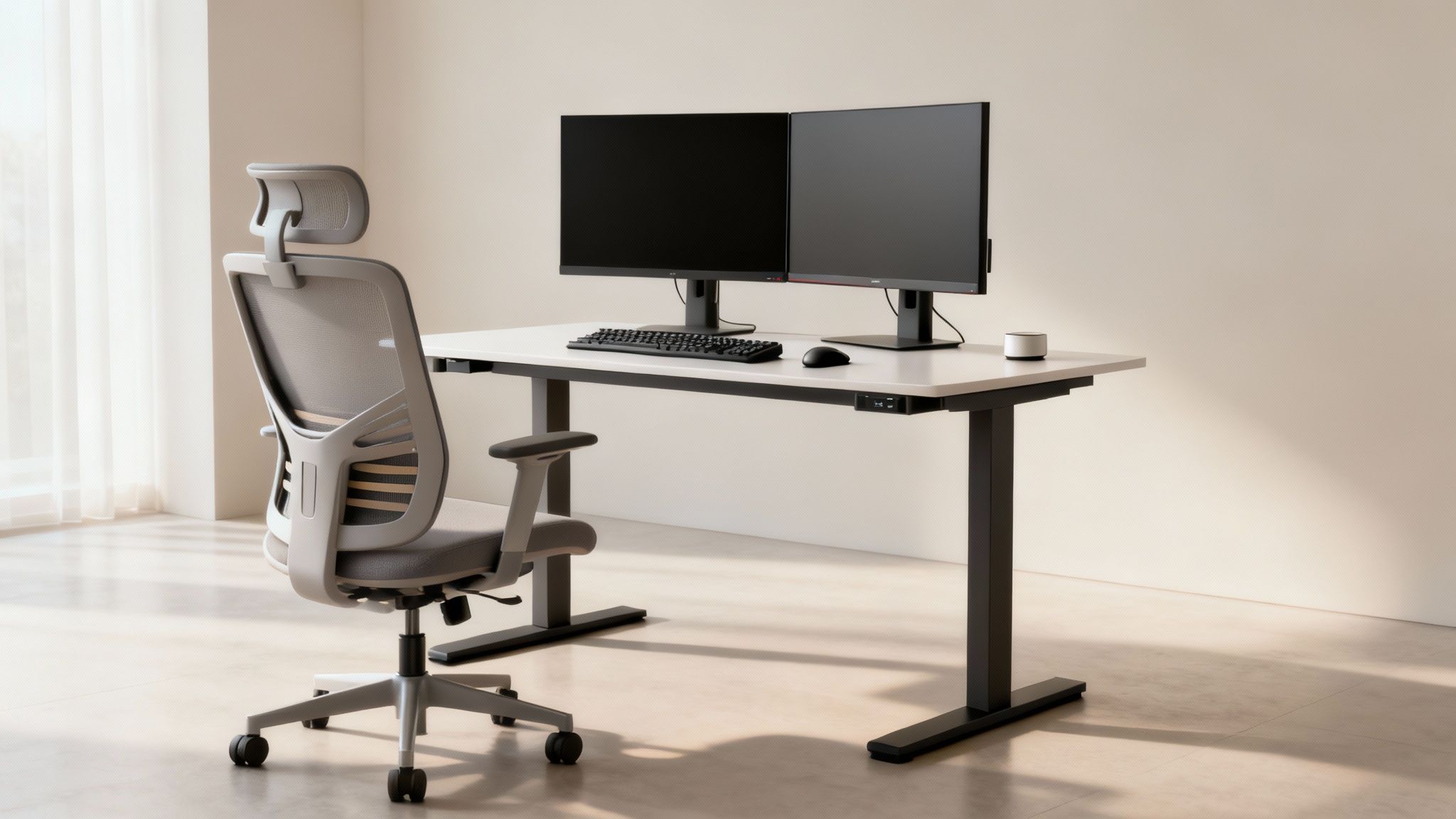
Alright, you've mapped out your space. Now comes the fun part: picking the gear that will define your workday. Your desk and chair aren't just furniture—they're the tools you'll be using for hours on end, every single day. Investing in the right ones is a direct investment in your own health and focus.
The proof is in the numbers. With 70% of professionals saying it's easier to do focused work remotely and 65% finding stress easier to manage from home, the stakes are high. Your office needs to be a place that supports you, not fights against you. For a deeper dive into these numbers, check out the latest hybrid work trends on Gallup.com.
Selecting The Right Desk For Your Space
Your desk is the centerpiece of your setup, and it absolutely has to fit both your room and your workflow. A one-size-fits-all approach just won't cut it.
-
Sit-Stand Desks: Honestly, these are the new gold standard. Being able to switch from sitting to standing is a game-changer for energy levels and killing back pain before it starts. The best ones have quiet electric motors and memory presets, so you can change positions with a single button press.
-
L-Shaped Desks: Got a corner you can claim? An L-shaped desk is an incredible way to create distinct zones. I keep my primary computer setup on one side and use the other for paperwork, sketching ideas, or assembling project hardware. It helps keep the chaos contained.
-
Minimalist Tables: If you're tight on space or just love a clean look, a simple, solid table works perfectly well. The one non-negotiable is depth. Make sure you have enough room to place your monitor at least 20-25 inches away from your eyes to avoid strain.
Demystifying The Ergonomic Chair
If you’re going to splurge on one single item, make it your chair. A truly ergonomic chair isn’t about plush leather; it’s about total adjustability. It needs to conform to your body, not the other way around.
Essential Chair Adjustments:
- Adjustable Lumbar Support: This is the big one. Your chair must have support that moves up and down (and ideally in and out) to perfectly match the curve of your lower back. It's the key to preventing slouching.
- 4D Armrests: Look for armrests that adjust in every direction: up/down, forward/back, in/out, and pivot. This lets you support your forearms at a perfect 90-degree angle, which takes a surprising amount of strain off your neck and shoulders.
- Seat Depth Adjustment: This feature is so often overlooked but it's critical for circulation. You should be able to slide the seat so there are about two or three fingers of space between the edge of the chair and the back of your knees.
A great chair isn't about luxury; it's about sustainability. It's the difference between ending your day with energy versus ending it with back pain. Don't compromise on support.
Choosing Your Digital Viewport
Your monitor setup is how you see your entire digital world. Getting it right can eliminate eye fatigue and neck aches while seriously boosting your efficiency. The two main camps are dual monitors or a single, massive ultrawide.
Dual Monitors vs. Ultrawide Display
| Feature | Dual Monitors | Ultrawide Monitor |
|---|---|---|
| Multasking | Amazing for separating tasks. Think code on one screen, Slack and email on the other. | Best for immersive, single-focus work like video editing or massive spreadsheets. |
| Desk Footprint | Takes up more width and puts a bezel right in the middle of your field of view. | One seamless, clean view. It just looks tidier and feels more focused. |
| Cost | Usually the more budget-friendly route. You can start with one and add a second later. | A quality ultrawide is typically a bigger upfront investment. |
For most people, I find a dual-monitor setup offers the best flexibility. The key is to avoid turning your head all day. Position one monitor directly in front of you as your "primary" workspace. Then, place the secondary monitor just off to the side, angled in slightly. This small tweak makes a huge difference.
Installing Monitor Arms For A Better View
Getting your monitors off their clunky default stands is one of the most satisfying upgrades you can make to your home office. It’s not just about getting that clean, minimalist look—it's a massive win for ergonomics and for reclaiming precious desk space. A quality monitor arm gives you the power to float your screens exactly where you need them, creating a more focused and comfortable setup.
The whole process might sound a bit technical, but it’s surprisingly straightforward. With a little planning, you can nail that floating monitor look that improves both your posture and your productivity.
Choosing The Right Monitor Arm
Before you even think about adding an arm to your cart, you have to play matchmaker. The first step is ensuring the arm is fully compatible with your monitor. Not all arms are created equal, and forcing a mismatch can lead to sagging screens or, worse, a monitor taking a nosedive onto your desk.
Here’s exactly what to check:
- Screen Size and Weight: Every EVEO arm clearly lists its weight limit and supported screen size. You need to know your monitor's weight without its stand and make sure it's under that limit. An arm built for a nimble 27-inch screen just won't have the muscle to handle a hefty 49-inch ultrawide.
- VESA Pattern: Flip your monitor around and you’ll see four screw holes on the back. That’s the VESA pattern. The most common sizes are 75x75mm and 100x100mm. Double-check your monitor's specs and ensure the arm's VESA plate is a perfect match. You can get a deeper dive by exploring our guide to the desk mount VESA standard.
A great monitor arm should feel effortless. If you have to wrestle with it to move your screen, something isn't right. Matching the weight and VESA pattern correctly is the key to that smooth, floating feeling.
Picking Your Mounting Style
Most monitor arms, including ours at EVEO, give you two ways to attach them to your desk. The one you choose depends entirely on what your desk is made of and how it’s designed.
- C-Clamp Mount: This is the go-to for most people. The clamp simply tightens onto the back edge of your desk, kind of like a G-clamp you'd find in a workshop. It’s perfect for almost any standard desk, as long as you have a solid edge to grip without a thick support bar getting in the way.
- Grommet Mount: For a super clean, almost built-in look, the grommet mount is the way to go. It secures the arm through a hole in your desk. Many office desks come with these pre-drilled for cable management. If yours doesn't, you can always drill one yourself for a permanent, centered installation.
The C-clamp is fantastic if you like to rearrange your setup now and then, while the grommet mount delivers a more fixed, professional finish.
The Installation And Fine-Tuning Process
Once you’ve confirmed everything fits and picked your mount, the assembly is pretty simple. It always pays to lay out all the parts and give the instructions a quick read-through first. Generally, you’ll assemble the arm base, secure it to the desk, and then attach the VESA plates to your monitors.
Lifting the monitors onto the arms can be tricky, especially with bigger screens. Don't be a hero—asking a friend for a hand for 30 seconds is a really good idea.
After the monitors are up, the real magic begins: the fine-tuning. This is where you dial in the ergonomics and get that perfect alignment.
- Adjust Gas Spring Tension: This is the most crucial step. Using an Allen key, you'll adjust a screw on the arm until the monitor holds its position without any help. If the screen slowly sinks, tighten the tension. If it creeps upward on its own, loosen it. The goal is for the monitor to move smoothly and stay exactly where you leave it.
- Set The Perfect Screen Height: Position the top edge of your screen at or just slightly below your eye level. This simple adjustment encourages a natural neck position, stopping you from hunching over or craning your neck—two major causes of workday pain.
- Align Dual Monitors Seamlessly: If you're running a dual-screen setup, take your time to get the monitors perfectly level and flush with each other. Even a tiny gap or height difference can be surprisingly distracting. Use the micro-adjustment features on the arm to get them just right.
Spending a few extra minutes getting the tension and alignment perfect will pay off every single day with a setup that not only looks professional but actively supports your health and focus.
Taming the Cable Chaos for a Truly Clutter-Free Desk
You’ve got the floating monitors, the ergonomic chair, and a desk that looks incredible… until you glance underneath. That chaotic nest of cables is the final boss of any clean workspace. It’s not just an eyesore; it's a constant visual distraction that can make even the most dialed-in work from home office setup feel unfinished and messy. The real goal isn't just to hide the wires, but to create a system that’s organized, logical, and easy to manage.
Good cable management is what separates an amateur setup from a professional one. It transforms your desk from a tangled surface into a clean, functional command center. As millions of people continue to work from home, the expectation for tidy, well-organized spaces has skyrocketed. People are investing in their own peripherals, and tools like cord hiders have become just as essential as the ergonomic gear they connect.
First, Map Out Your Cable Pathways
Before you zip-tie a single thing, take a minute to plan. You have to understand the journey of each cable.
Start by identifying the main culprits. It's usually the power cords for your monitors and laptop, video cables like HDMI or DisplayPort, and a few USB connections for your keyboard, mouse, or webcam.
Think about where each cable starts and where it needs to end up. Your power strip is the central hub, so the goal is to route everything to it as cleanly as possible. This little bit of planning is a lifesaver—it keeps you from creating a hidden mess that’s a nightmare to troubleshoot when you need to swap out a device.
Use a Cable Raceway for a Clean Foundation
The single most effective tool for hiding that main bundle of wires is a cable raceway. These are simple channels that stick to the underside or back of your desk, creating a dedicated pathway to conceal the bulk of your cords—and often the power strip itself. An EVEO cable raceway kit makes this part a breeze.
This is the same kind of methodical approach you’d use for installing a monitor arm, another key component for a clean setup.
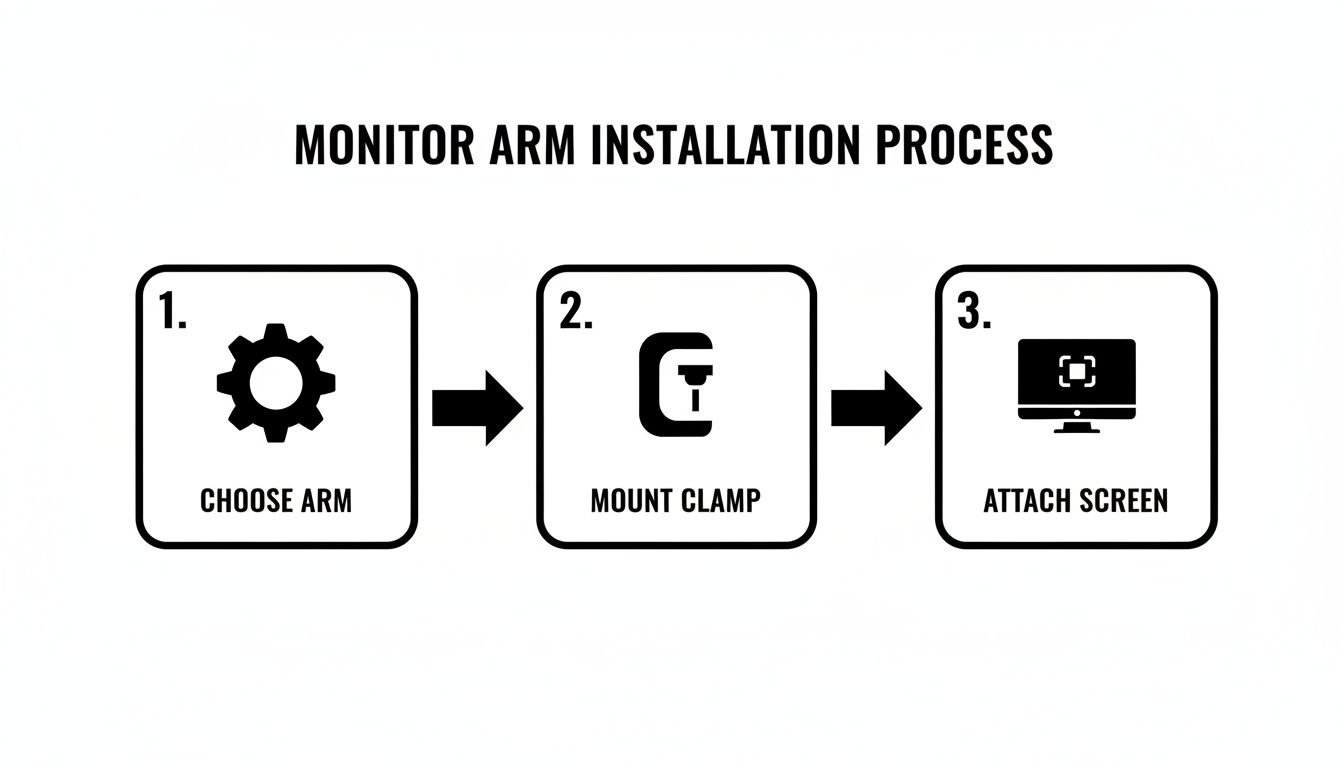
Just like the visual guide shows—choose the arm, mount it, attach the screen—cable management works best when you follow a few simple steps.
First, measure the area where you want to stick the raceway, which is usually right along the back edge of your desk. Most raceways use strong adhesive tape, so you won't even need tools.
- Position and Secure: Clean the desk surface with a wipe, then peel the backing off the adhesive strip. Press the raceway firmly into place and hold for a few seconds.
- Route Your Cables: Pop the raceway cover open and start tucking your cables inside. I like to place the power strip inside first (if it fits), then neatly route all the power and data cables along it.
- Close It Up: Once every wire is tucked in, just snap the cover shut. All that’s left are the few essential cables popping out exactly where you need them.
The best cable management is invisible yet accessible. A raceway system should make it simple to add or remove a device without having to undo your entire setup.
The Finishing Touches for a Flawless Look
With the major cable bundles completely hidden, a few small accessories will handle any stray wires and give your desk that flawless, professional look.
- Velcro Ties: These are perfect for bundling any slack from the cables running up your monitor arm or behind your screens. This keeps any wires from dangling down and ruining the "floating" illusion.
- Adhesive Clips: These little clips are great for guiding single cables you access often, like your phone charger or mouse cable, right where you need them on your desk without adding clutter.
Combine these techniques, and you’ll have a setup that looks amazing and feels incredibly functional. This final step in your work from home office setup ensures nothing distracts you from getting things done. For a deeper dive, check out our complete guide on under-desk cable management solutions.
Refining Your Space With Lighting, Audio, And Accessories
Alright, your desk, chair, and monitors are all dialed in. Now it's time for the fun part—adding the finishing touches that transform a functional workstation into your personal command center.
Getting the lighting, audio, and accessories right can completely change your mood, focus, and the entire feel of your workday. These details are what make a professional work from home office setup feel truly complete, turning a pile of gear into a cohesive space designed for peak performance.
Implement A Three-Layer Lighting Strategy
Ever get a headache after a few hours at your desk? Poor lighting is one of the biggest culprits behind eye strain and fatigue. Just relying on that single overhead room light is a recipe for harsh shadows and discomfort. A much better approach is to layer different types of light to create a balanced, comfortable, and visually appealing workspace.
This method ensures your eyes are comfortable, whether you're deep in a spreadsheet or jumping on a video call.
- Ambient Light: This is your room's overall illumination, usually coming from a ceiling fixture or big windows. It sets the baseline, but it should never be your only source of light.
- Task Light: A good, focused desk lamp is non-negotiable. It lights up your immediate work area—the keyboard, your notebook, any documents—without throwing a nasty glare onto your screen. This direct light is what saves your eyes when you look away from your monitor.
- Accent (or Bias) Light: Here's the secret weapon for fighting eye fatigue. Stick an LED strip on the back of your monitor to cast a soft glow on the wall behind it. This technique, called bias lighting, shrinks the harsh contrast between your bright screen and the dark wall, making long sessions way easier on your eyes.
By blending these three sources, you create a dynamic lighting environment that you can adjust for any task, any time of day.
Choose The Right Audio For Your Workflow
Your audio setup doesn't just affect your concentration—it also shapes how professional you sound on calls. The classic speakers vs. headphones debate really comes down to your personal workflow, your living situation, and how often you're in meetings. There isn't one right answer, just the one that's right for you.
If you spend a lot of time presenting or on video calls, investing in your audio is a no-brainer. For a deeper dive, check out the top benefits of upgrading your audio and video equipment in our other guide.
Speakers vs. Headphones: A Quick Comparison
| Consideration | Desktop Speakers | Headphones |
|---|---|---|
| Call Quality | Can create an echo if they aren't positioned carefully. | A dedicated headset with a boom mic offers the clearest, most professional sound. |
| Comfort | Perfect for long-term listening without anything on your head. | Can cause ear fatigue after a few hours of constant wear. |
| Immersion | Gives you an open, natural sound for music or background noise. | Ideal for deep focus and blocking out distractions with noise cancellation. |
If your calendar is packed with meetings, a quality headset is a must. But for those long, deep-work sessions where you just want some background music, a good pair of speakers creates a much more open and pleasant vibe.
Your audio choice should reduce friction in your day. If you're constantly fumbling with a headset for impromptu calls, speakers might be better. If household noise kills your focus, noise-canceling headphones are a worthy investment.
Complete Your Setup With Essential Accessories
The final layer is all about the small but mighty accessories that solve everyday annoyances and add that last bit of organization. These are the tools that protect your gear and streamline your daily routine.
EVEO Screen Cleaner: Think of your monitor as your window to your work. Smudges, dust, and fingerprints create a subtle layer of visual noise that is surprisingly distracting. Keeping it clean isn't optional if you want total clarity. An alcohol-free cleaner is critical to protect the delicate coatings on modern screens.
AirTag Holder Keychain: For anyone doing the hybrid work dance, keeping track of keys, bags, and other gear can be a constant headache. An EVEO AirTag Holder is a dead-simple, durable way to make sure you never leave critical items behind again. It’s a tiny piece of tech that delivers a huge amount of peace of mind.
These carefully chosen accessories are the final pieces of the puzzle. They solve the real-world problems of a modern professional, ensuring your work from home office setup isn't just clean and ergonomic, but perfectly equipped for whatever your day throws at you.
Keep Your Home Office Working For You
Your new home office setup looks great, but the work isn't quite done. A truly productive workspace isn't a set-it-and-forget-it project. Think of it more like a garden—it needs a little regular attention to keep things from getting overgrown and messy.
This small investment of time prevents the slow creep of clutter and keeps your ergonomic gear working as it should. A few minutes a week is all it takes to protect your well-being and keep you focused day after day.
A Simple Maintenance Checklist
The secret to effortless upkeep is building a routine. When you break down the tasks into small, consistent actions, it never feels like a chore.
Your 5-Minute Weekly Refresh:
- Wipe-Down: Give your desk, keyboard, and mouse a quick wipe to get rid of dust and germs. It just feels better to start the week fresh.
- Screen Care: Grab a good screen cleaner and a microfiber cloth to clean your monitors. A crystal-clear screen is easier on the eyes.
- Cable Check: Take a quick look to make sure your cables are still tucked away neatly in their raceways.
Your 15-Minute Monthly Reset:
- Monitor Arm Check: Make sure your monitor arms are still holding your screens exactly where you want them. If you notice any sagging, it’s time to adjust the gas spring tension.
- Deep Clean: Go a bit further by dusting shelves, cleaning the gunk out of your chair's wheels, and organizing that small pile of papers that always seems to appear.
Your setup should adapt to you, not the other way around. A home office is a living space that evolves with your work. Regular, small adjustments are what keep it working for you.
Give Yourself an Ergonomic Audit
Beyond just cleaning, you need to check in with your body. Our habits change, and a setup that felt perfect last month might be causing new aches and pains today. Once a month, take five minutes to ask yourself a few questions.
Are you still sitting up straight, or have you started to slouch? Is your monitor height still perfect, or are you craning your neck to see the top of the screen? Have your daily tasks changed, meaning you need to rearrange your tools?
Making these tiny, proactive tweaks prevents a minor annoyance from turning into chronic pain. This habit of self-correction ensures your work from home office setup remains a source of productivity, not a source of strain.
A Few Common Questions We Get
Even with the best plan, a few questions always pop up when you're piecing together a new desk setup. Here are some quick answers to the ones we hear the most.
What’s the Single Most Important Part of a Home Office?
While everything from your monitor to your mouse matters, your ergonomic chair is the single most critical investment you can make. Nothing else will have a bigger impact on your long-term health and daily comfort.
A great chair gives your spine the support it needs, drastically cutting down the risk of chronic back pain and encouraging good posture all day long. Honestly, think of it as the real foundation of your entire workspace.
Are Monitor Arms Really Worth the Upgrade?
Absolutely, 100%. A good monitor arm is one of the most transformative upgrades you can make to any desk setup. They instantly give you back a ton of surface area by ditching those clunky factory stands, but the real magic is in the ergonomics.
A monitor arm lets you dial in the exact height, depth, and angle for your screen—something the included stand almost never gets right. They're pretty much non-negotiable for getting dual monitors lined up perfectly.
This precision is what prevents neck strain and helps create that clean, professional look. It’s a smart investment in both your well-being and your desk’s functionality.
What's the Easiest Way to Tame My Desk Cables?
The simplest, most effective way to get a handle on cable clutter comes down to a trio of essential tools.
- Velcro Ties: Perfect for bundling cables together behind your monitors or snaking them up the arm of your monitor mount.
- Cable Raceway: This is the key. You install a raceway or a fabric sleeve under the lip of your desk to hide the main bundle of wires running to your power strip.
- Adhesive Clips: Use these little guys to guide single cables you need to grab often, like your phone charger, right to where you want them.
This simple system keeps everything tidy, accessible, and completely out of the way.
A clean, organized, and ergonomic workspace is the secret to getting more done with less stress. EVEO provides the high-quality monitor arms, cable management solutions, and essential accessories you need to build your perfect home office. Shop the collections at EVEO and start building your ideal setup today.
Adjustable Monitor Arms: Elevate Your Desk Setup for Comfort
Cable Management for Desk: The Ultimate Guide to a Tidy Workspace