
It’s easy to let the dust, smudges, and fingerprints build up on your laptop screen.We've all done it. But that layer of grime is more than just an eyesore—it can genuinely affect your work, your health, and the longevity of your device.
Why a Clean Screen Is More Than Just Aesthetics
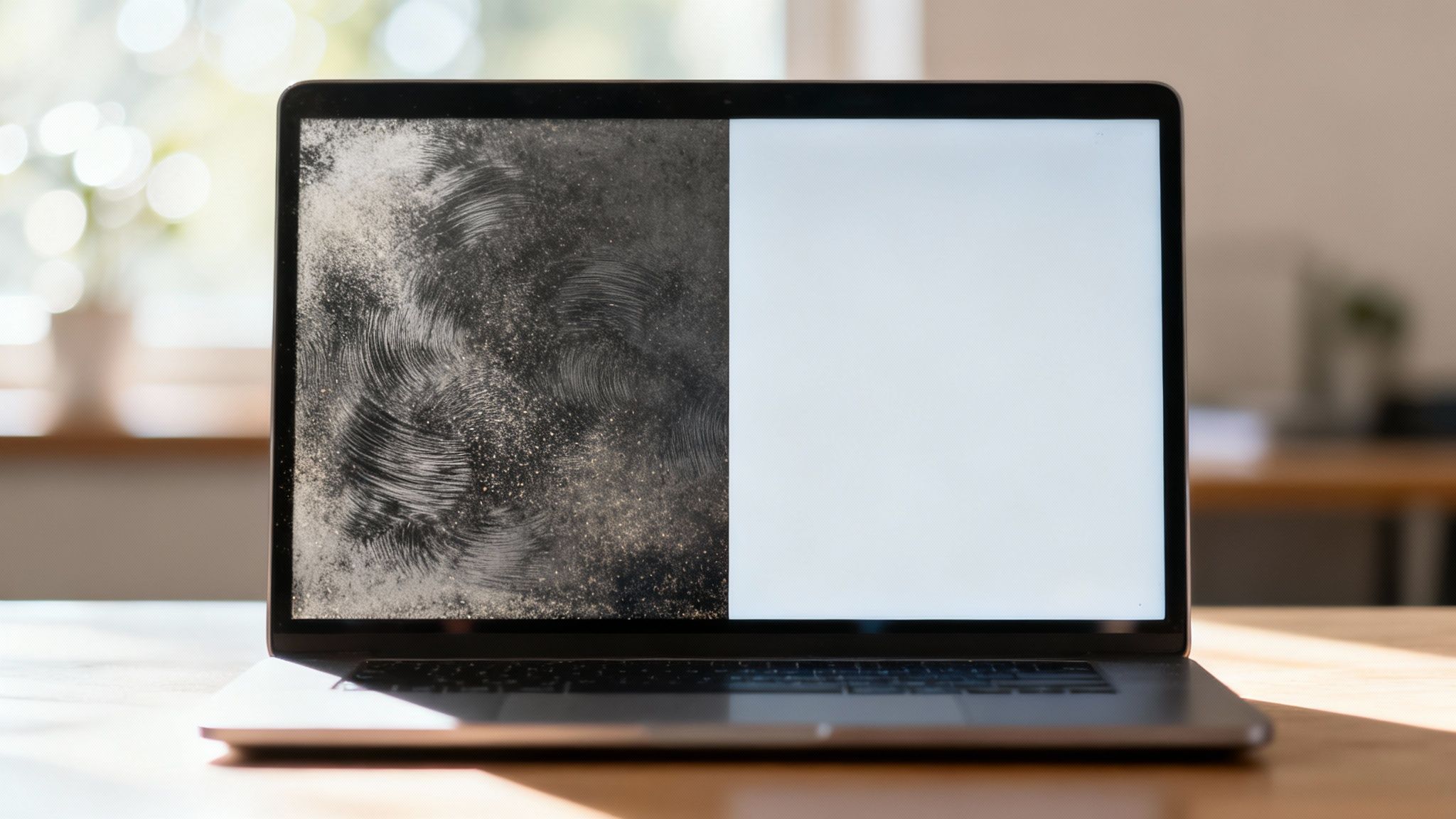
A dirty display forces your eyes to work harder. The smudges and dust create a subtle glare and reduce the screen's clarity, which can lead straight to digital eye strain. If you spend hours in front of your laptop, you know the feeling: tired eyes, headaches, and a general sense of fatigue.
This isn't just a comfort issue. It can subtly sabotage your focus and slow you down as you constantly squint to read text or make out details in an image.
Protecting Your Health and Your Hardware
Your laptop screen is also a magnet for germs. Studies consistently show that our personal electronics are breeding grounds for bacteria—sometimes harboring more than a household toilet seat. A quick, regular cleaning is a simple hygiene win for your workspace.
This is where knowing how to clean a laptop screen safely becomes crucial. It’s tempting to grab a paper towel and some Windex, but that’s a recipe for disaster. Household cleaners often contain harsh chemicals like ammonia or alcohol that can permanently damage the delicate anti-glare and oleophobic (oil-repellent) coatings on modern screens.
The damage is often irreversible, leaving you with permanent cloudiness, ugly streaks, or even discoloration. The whole point is to remove the dirt without harming the sensitive display underneath.
It's no surprise that people are paying more attention to proper screen care. The global market for screen cleaners is projected to hit USD 4.0 billion by 2031, largely because of a growing awareness around device hygiene and maintenance. If you want to dive deeper, you can explore the data on screen cleaner market trends to see the full picture.
Ultimately, taking a moment to clean your screen the right way protects your investment, makes your work more comfortable, and keeps your primary workspace a little healthier. It's a small habit that pays off in a big way.
Gathering the Right Tools for the Job
Before you touch that screen, let's talk about tools. Your laptop's display is far more delicate than you might think, and grabbing the wrong stuff can turn a simple cleanup into a permanent, costly mistake. It's like prepping for surgery—you need the right instruments.
Your absolute number one essential is a high-quality microfiber cloth. I can't stress this enough. Paper towels, your t-shirt, or a random kitchen rag are a screen's worst enemy. They're abrasive and will leave behind a web of tiny scratches, not to mention a frustrating amount of lint.
A good microfiber cloth, on the other hand, is made of ultra-fine, split fibers that are designed to grab and hold onto dust, oil, and grime instead of just smearing it around. Make sure yours is clean and dry before you start.
Choosing a Safe Cleaning Solution
For those greasy fingerprints and stubborn smudges that a dry cloth won't budge, you'll need a bit of liquid help. This is where most people go wrong, and the damage can be irreversible.
Please, step away from the Windex. The same goes for rubbing alcohol, vinegar, or any all-purpose household cleaner. These contain harsh chemicals like ammonia that will strip the anti-glare and oleophobic coatings right off your screen, leaving it cloudy, discolored, or streaky for good.
The best choice is a dedicated, alcohol-free screen cleaning spray. These are formulated specifically for modern displays. If you're in a pinch, a little distilled water (not tap water, which has minerals) can work, but it won't cut through oil very effectively.
Pro Tip: Never, ever spray cleaner directly onto the screen. Always apply it to your microfiber cloth first. This small step prevents liquid from dripping down and seeping into the bezel, which can fry the sensitive electronics inside. It’s a simple habit that can save you from a major headache.
Getting the right gear makes knowing how to clean a laptop screen safely a whole lot easier. If you're looking for recommendations, this ultimate screen cleaner buying guide is a great place to start.
Safe vs Unsafe Laptop Screen Cleaning Tools
It's easy to grab what's convenient, but the wrong tool can cause irreversible damage. Here’s a quick rundown of what to use and what to avoid at all costs.
| Tool Category | Safe Choice (Recommended) | Unsafe Choice (Avoid) |
|---|---|---|
| Cloths & Wipes | High-quality, clean microfiber cloths. | Paper towels, napkins, t-shirts, dish towels. |
| Cleaning Liquids | Specially formulated screen cleaning sprays (alcohol-free). | Windex, rubbing alcohol, vinegar, soapy water, tap water. |
| Application Method | Lightly dampened cloth applied with gentle pressure. | Spraying liquid directly onto the screen. |
| Dust Removal | Soft-bristled brush or air blower. | Canned air (can spray liquid propellant), your breath. |
Think of this table as your cheat sheet. Stick to the "Safe Choice" column, and your screen will thank you for it.
The Safe Method for a Flawless Finish
Alright, you've gathered your supplies. Now it’s time to put them to work and get that screen looking factory-fresh without causing any harm. Following this simple, field-tested process is the key to knowing how to clean laptop screen safely and effectively.
Before you do anything else, power down your laptop completely. Unplug it from the wall, too. This is a non-negotiable first step. A dark, unlit screen makes it a hundred times easier to spot every last fingerprint and smudge, and it completely removes the risk of electrical shorts if any moisture gets where it shouldn’t.
The Cleaning Technique
With the device off, take your clean, dry microfiber cloth. Start with a gentle pass over the entire screen, wiping in broad, overlapping strokes from top to bottom. This initial dry wipe picks up all the loose dust and surface-level debris. It's a crucial move because it prevents that grit from turning into a muddy, abrasive paste once you add a cleaning solution.
For those more stubborn smudges and fingerprints that the dry cloth couldn't handle, you'll need a little moisture. Lightly mist your alcohol-free screen cleaner onto a different, clean part of your microfiber cloth. Never, ever spray directly onto the screen itself. This one habit is a lifesaver for your laptop, preventing liquid from seeping under the bezel and frying the sensitive electronics inside.
Key Takeaway: The "spray the cloth, not the screen" rule is the single most important technique for preventing liquid damage. Moisture that gets behind the screen can cause permanent dark spots, flickering, or a complete hardware failure.
The global market for screen cleaners hit a massive USD 3.5 billion in 2023, which just goes to show how many people are looking for the right way to clean their devices. Considering 78% of office workers say a dirty screen impacts their ability to see clearly, using the proper technique is more than just about aesthetics. A high-quality microfiber cloth, like the one in EVEO's screen cleaner kit, is designed to trap 99.9% of dust without leaving the tiny scratches that paper towels can. Sticking to this method can actually extend the life of your device by up to 25%, saving you from an expensive replacement down the line.
This flowchart maps out the entire safe cleaning process, highlighting the right tools versus the wrong ones.
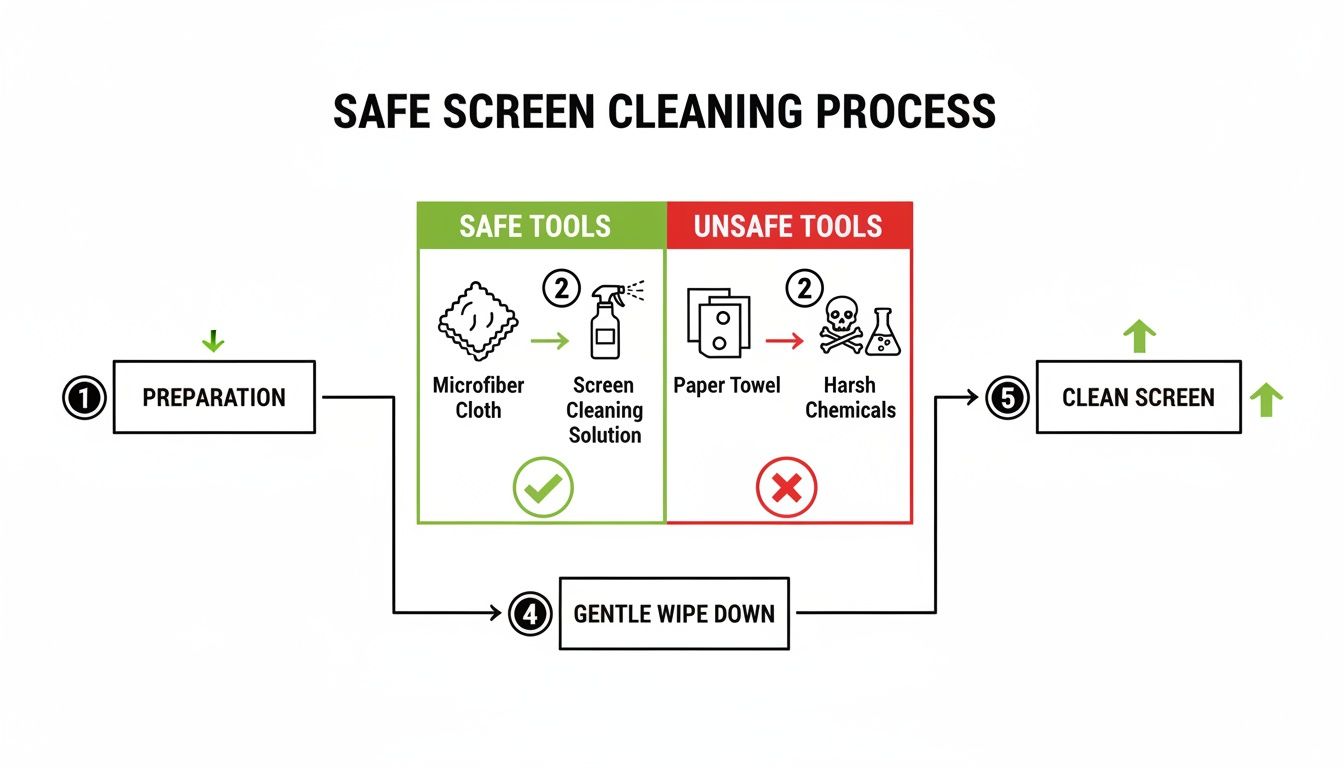
As you can see, the visual makes a clear case for using dedicated supplies instead of grabbing whatever household items are nearby.
Final Polish and Inspection
Now, with your slightly dampened cloth, go back over the screen. Use gentle, consistent motions, either moving from top-to-bottom or side-to-side. You don’t need to apply much pressure at all; pushing too hard can permanently damage the delicate pixels that make up your display.
Once you’re satisfied, just let the screen air-dry for a few minutes. It shouldn't take long. Make sure it's completely dry before you close the lid or power your laptop back on.
This exact same method works like a charm for desktop monitors, too. We have a guide with more specific tips here: https://eveo.store/blogs/news/how-to-clean-monitor-screen. And if you really want to go in-depth on the topic, a comprehensive computer screen cleaner guide is another fantastic resource.
Common Cleaning Mistakes That Can Ruin Your Screen
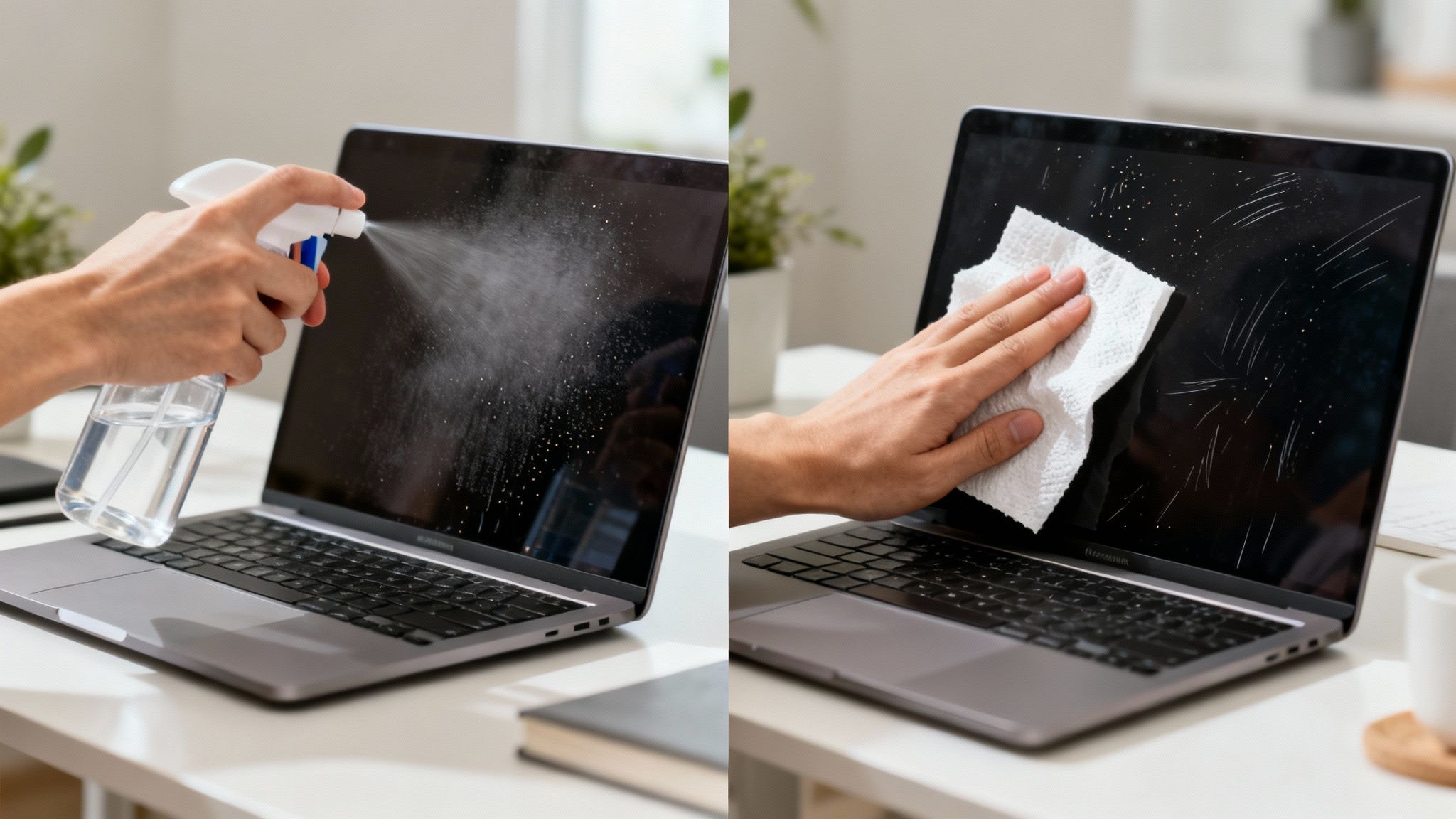
Knowing the right way to clean your laptop screen is only half the battle. What’s just as important is knowing what not to do. I’ve seen countless screens damaged by well-intentioned owners who fell into a few common traps.
It's so tempting to scrub away at a stubborn smudge, but a laptop screen isn't a kitchen counter. Applying too much pressure is one of the quickest ways to cause permanent damage. Those delicate pixels underneath can easily be bruised or killed, leaving you with ugly bright or dead spots that are there for good. Remember, a gentle touch is all you need.
Liquids, Power, and Common Sense
Here's a cardinal sin of screen cleaning: never, ever spray liquid directly onto the display. It’s a fast track to disaster. The fluid will inevitably run down the screen and seep under the bezel, getting into the sensitive electronics. This is a classic way people end up with water damage and a hefty repair bill, so it's worth learning about preventing liquid damage before it's too late.
Another big no-no is cleaning the screen while it's still on. Not only does an illuminated screen make it harder to spot all the grime, but you're also introducing moisture to a live electrical component. The risk of a short circuit is very real. Always shut down your laptop completely and unplug it from the power adapter before you start.
Expert Tip: Think damp, not wet. A microfiber cloth that’s just slightly moistened has all the cleaning power you need for everyday fingerprints and dust. Any more than that is just asking for trouble.
Choosing the Wrong Tools for the Job
Many people grab whatever is handy, but that can be a costly mistake. For instance, using plain tap water seems harmless, right? The problem is that tap water is full of minerals. When it dries, it leaves behind a streaky, hazy film, making you feel like you have to clean the screen all over again.
Here are a few other common culprits to avoid at all costs:
- Household Cleaners: Window cleaners and all-purpose sprays often contain harsh chemicals like ammonia or alcohol, which can strip the anti-glare and oleophobic coatings right off your screen.
- Abrasive Materials: Paper towels, tissues, and old t-shirts feel soft to us, but on a microscopic level, their fibers are abrasive. They’ll create tiny scratches that dull your display over time.
- Tap Water: As mentioned, the mineral deposits will leave you with more streaks than you started with.
Avoiding these common pitfalls is just as critical as following the right steps. By being mindful of pressure, liquids, and your choice of cleaning materials, you can keep your screen looking crystal clear without causing accidental harm.
How to Keep Your Screen Cleaner for Longer
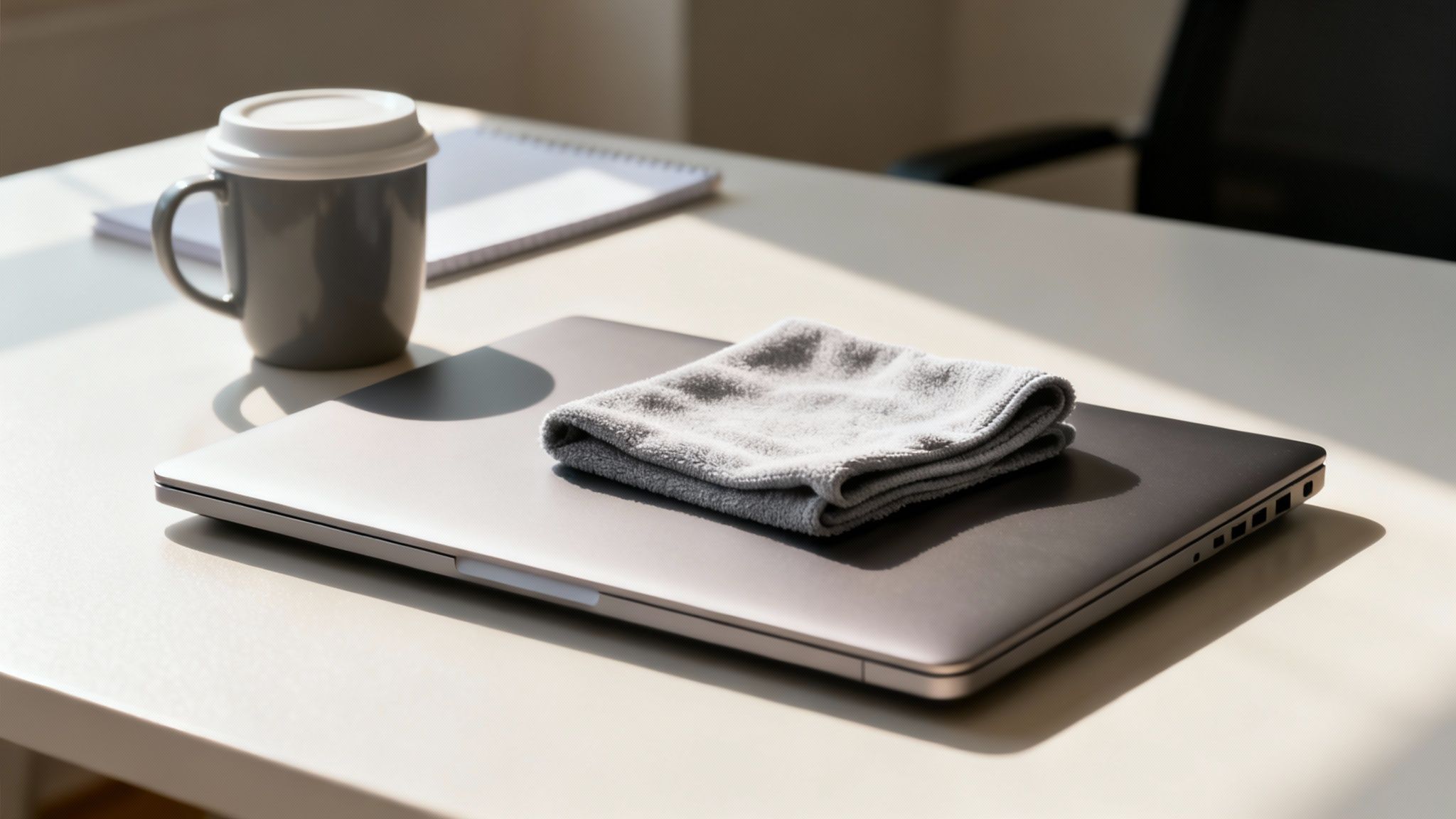 Okay, so you've put in the work and now your screen is sparkling. The real trick is keeping it that way. The less you have to do a full "wet" clean, the better it is for the long-term health of your screen's coating. It all comes down to a few simple habits that make a surprisingly big difference.
The easiest one? Just close the lid when you're done. It's the most effective dust cover you own, preventing anything floating in the air from settling on your display.
Adopt Smarter Habits
Next, and this is a big one, stop touching the screen. It's so easy to do without thinking—pointing something out to a colleague or tapping an icon—but every touch leaves behind oily residue. That residue is a magnet for dust and grime.
Be conscious of where you're using your laptop, too. Eating at your desk or working in a workshop will mean your screen gets dirty much faster. A little awareness goes a long way.
Pro Tip: Give your screen a quick, dry wipe-down with a clean microfiber cloth once a week. This literally takes 30 seconds and stops that initial light layer of dust from building up into a stubborn, smudgy mess that requires a full cleaning.
Building these small routines into your week is the best way to fight back against fingerprints and dust. Having a good screen cleaning kit stashed in your desk drawer makes it even easier to stay on top of things.
Lingering Questions About Cleaning Your Laptop Screen
Even with a solid game plan, you might still have a few questions. That's smart. When you're dealing with a screen that can cost a small fortune to replace, it pays to be absolutely sure. Let's clear up some of the most common uncertainties I hear from people.
So, Can I Just Use Water?
You can, but it's a qualified yes. If you reach for water, make it distilled water—never tap. Your tap water is full of minerals that will leave a streaky, cloudy film on your screen as soon as it dries, making things look worse than when you started.
Even then, the golden rule applies: always spray the cloth, never the screen. Just a light mist on your microfiber cloth is all you need. Honestly, though, water doesn't do a great job on oily smudges and fingerprints. A proper pH-neutral screen cleaner is almost always the better choice for cutting through that kind of grime.
What's Genuinely the Best Stuff to Use?
The hands-down best combination is a clean, high-quality microfiber cloth paired with an alcohol-free screen cleaning spray made specifically for electronics. This duo is engineered to lift away oils and dust without damaging the sensitive anti-glare or oleophobic coatings that modern screens rely on. Anything else is a gamble.
My rule of thumb is to always start with the gentlest method. Try a dry microfiber cloth first. If that doesn't lift the smudges, then—and only then—introduce a tiny bit of an approved cleaner onto the cloth itself.
How Often Should I Be Doing This?
This really comes down to your environment and how much you use your laptop. For most people, a quick, dry wipe-down with a microfiber cloth once a week is perfect for keeping dust from building up.
Save the deep clean with a spray for when it's truly necessary. Maybe once a month, or just whenever you can't stand the sight of the fingerprints anymore. Over-cleaning, especially with any kind of liquid, can prematurely wear down your screen's protective coatings. Less is definitely more here.
For a reliable, streak-free shine every time, trust the tools designed for the job. The EVEO Screen Cleaner Kit provides everything you need to keep your devices spotless and safe. Get yours today at https://eveo.store.
Best Ways to Hide Cables: Simple, Stylish Solutions for Any Space
Finding the Best Monitor Arm for Dual Monitors