

If you've ever tried to line up two monitors on their own stands, you know the struggle. Getting them to sit perfectly level and at the same height is a constant, frustrating battle. This is precisely where a great dual monitor arm steps in and completely changes the game.
Choosing the best monitor arm for dual monitors is about more than just clearing up desk space. It's about finding the right combination of weight capacity, VESA compatibility, and fluid adjustability that perfectly matches your specific screens and how you work.
Why the Right Dual Monitor Arm Is a Game Changer
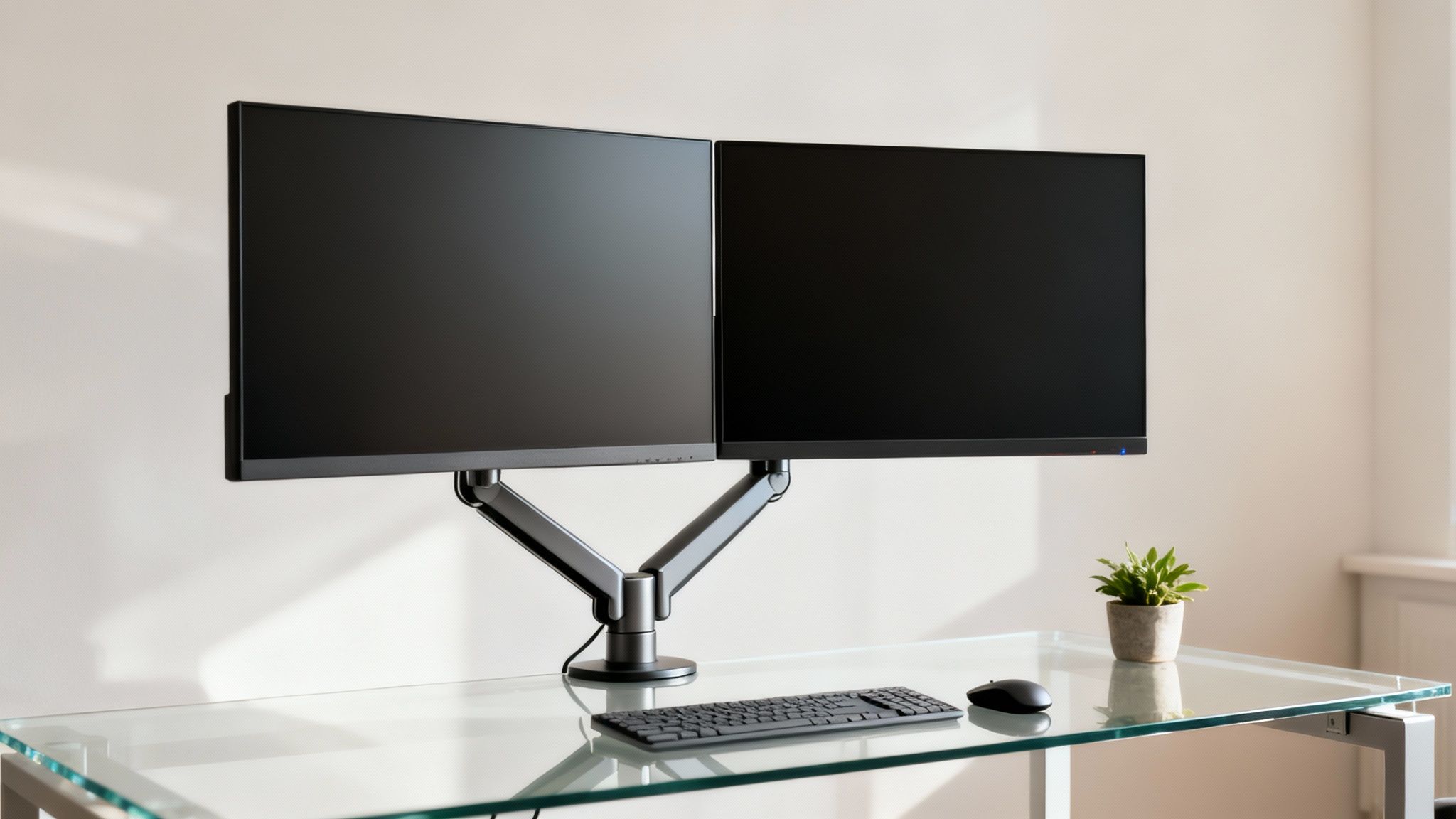
Anyone who juggles multiple projects knows a dual monitor setup is a massive productivity win. But propping them up on their original stands creates a new set of problems: a cluttered desk, misaligned screens, and a setup that forces you into an uncomfortable posture.
A high-quality dual monitor arm is the unsung hero that solves all of this. It lifts your monitors completely off the desk, instantly freeing up a huge amount of surface area you can actually use. More importantly, it gives you the power to place each screen at the exact height, depth, and angle you need for a seamless, wrap-around view.
The real goal here is to stop the constant neck craning, eye strain, and slouching that happens when your displays are in the wrong spot. A good arm lets you align your monitors flawlessly for a comfortable, focused workday.
This isn't just a niche trend; it’s a fundamental shift in how we build effective workspaces. The global monitor arm market hit USD 1,663.5 million in 2024, a clear sign that professionals everywhere are prioritizing ergonomics. With studies showing that dual monitors can improve multitasking efficiency by up to 42%, it's no wonder people are investing in the tools that unlock that potential. You can read more about the growth of the monitor arm market and its impact on modern offices.
At EVEO, our mission is to help you create organized, ergonomic spaces that make your day-to-day work easier and more comfortable. We designed our monitor arms and accessories to solve these exact pain points, giving you a trusted solution for reclaiming your desk and building a healthier, more productive setup.
This guide will walk you through everything you need to know to choose the best monitor arm for dual monitors.
Getting to Know the Key Features of a Monitor Arm
Picking out the right dual-monitor arm can seem a little intimidating at first. You'll see terms like VESA, gas spring, and swivel everywhere, but don't worry. Once you get a handle on what these core features do, you'll know exactly what to look for to match your screens and your workspace. It’s like learning the key specs before buying a new car—it empowers you to make a smart choice.
Let's start with the absolute must-know spec: VESA compatibility.
Flip your monitor over, and you'll see a square or rectangular pattern of four screw holes. The VESA standard is simply the measurement between these holes in millimeters. The most common sizes you'll find are 75x75mm and 100x100mm. Before you add any arm to your cart, take a second to check this pattern on your monitors. This one small step guarantees the arm will bolt on perfectly. If you want to get into the nitty-gritty, our guide on how a VESA desk mount works has all the details.
Why Weight Capacity Is Non-Negotiable
Next up, let's talk about weight capacity. Think of this as the golden rule for keeping your setup stable and safe. Every monitor arm is built to hold a specific amount of weight on each arm. If your monitor is too heavy, the arm will slowly start to sag. On the flip side, if it's too light for a powerful arm, you might struggle to push it down.
This is a huge deal for dual-monitor setups. You need to know the weight of each monitor, but make sure you're weighing it without its clunky original stand. Heavier screens, especially those big ultrawide or curved gaming monitors, put a lot more stress on the arm. Sticking to the recommended weight capacity means your screens will stay exactly where you position them, no drooping allowed.
The Smooth Moves of a Gas Spring Arm
Ever wonder how a really good monitor arm glides into place with just a touch? That's the magic of a gas spring mechanism.
Inside the arm is a pressurized gas cylinder that acts as a perfect counterbalance to your monitor's weight. It’s what makes those one-touch, fingertip adjustments possible. You can lift, lower, push, and pull the screen without wrestling with knobs or levers. It just... floats.
This kind of fluid motion is what separates a basic arm from a great one. It lets you make tiny adjustments on the fly, which is perfect for switching between sitting and standing or just tweaking your angle to stay comfortable throughout the day.
Tilt, Swivel, and Rotation: Your Adjustment Toolkit
Finally, let’s break down the three movements that give a monitor arm its incredible flexibility. Knowing what each one does is the key to creating a setup that’s truly comfortable and glare-free.
-
Tilt: This is the up-and-down pivot of the screen. A slight downward tilt is fantastic for cutting out glare from overhead lights or a bright window. It’s a small change that makes a massive difference to your eyes.
-
Swivel: This is the monitor's side-to-side swing on the arm. For dual setups, swiveling both screens inward creates a focused, cockpit-style viewing arc. It’s also great for quickly sharing what’s on your screen with someone sitting next to you.
-
Rotation: This is what lets you spin your monitor from landscape (horizontal) to portrait (vertical) mode. An arm with 360-degree rotation gives you total freedom. Coders, writers, and graphic designers love this for working on long documents or vertical projects.
When you combine tilt, swivel, and rotation, you're in complete command. You can kill reflections, get your screens lined up just right, and adapt your workspace to whatever you're doing. Your focus stays on your work, not on fighting with your setup.
Choosing the Right Mount for Your Desk
The heart of a rock-solid dual monitor setup isn't actually the arms—it's the mount that anchors them to your desk. Think of it like the foundation of a house. If it's not strong and right for the ground it's on, everything built on top of it will be unstable. Getting this one choice right ensures your screens stay secure, wobble-free, and exactly where you need them.
You’ll typically run into three main options: the C-clamp, the grommet mount, and the freestanding base. Each has its own strengths, and the best one for you really boils down to your desk's design, what it's made of, and the look you're going for.
The C-Clamp: The Versatile All-Rounder
The C-clamp is the one you'll see most often, and for good reason. It works exactly like a clamp you'd find in a woodshop, creating a super-strong but temporary grip on the edge of your desk. You just slide it on and tighten a screw until it’s locked in place.
Its biggest advantage is that you don't have to drill any holes or make permanent changes to your desk. This makes it a perfect fit if you're renting or just don't want to mar your furniture. It’s the default choice for most solid wood or thick particleboard desks.
But, before you jump on the clamp, keep a few things in mind:
- Desk Thickness: Check the specs. Most clamps can handle a desk thickness between 0.4" and 3.5". Grab a tape measure and check yours first.
- A Clear Edge: The clamp needs a flat, clear surface to grab onto. If your desk has a decorative lip, a beveled edge, or drawers right up to the back, a clamp might not get a secure grip.
- Fragile Surfaces: Be careful with softer materials. The concentrated pressure from a clamp can dent or damage hollow-core desks or some types of bamboo over time.
The Grommet Mount: The Sleek and Secure Choice
If you’re after a super clean, minimalist look, nothing beats a grommet mount. This is a bolt-through-the-desk solution that provides an incredibly secure connection. It’s designed to pass through one of those pre-drilled holes for cable management (the grommet), making the arm look like it's a built-in part of your desk.
No hole? No problem—if you’re comfortable with a drill, you can add one. This makes the grommet a more permanent installation, but the payoff is top-tier stability and a much smaller footprint on your desk surface. It's a fantastic option for any desk, especially those with weird edges where a clamp just won't work.
Think of the grommet mount as the "set it and forget it" champion. By anchoring the arm directly through the desk, it spreads the weight out and offers unshakable stability—a huge plus when you've got two heavy monitors hanging off it.
The Freestanding Base: The Portable Option
A freestanding base is exactly what it sounds like. It’s a heavy, wide platform that sits right on your desk, acting like a traditional monitor stand but with the flexibility of two articulating arms attached. The main appeal here is total freedom. You can reposition your entire dual-monitor rig anywhere on your desk, or even move it to a different room, with zero fuss.
That convenience comes with a major catch, though: it eats up a ton of desk space. The large footprint needed to safely counterbalance two monitors often defeats one of the main reasons for getting a monitor arm in the first place—to reclaim that valuable real estate. Freestanding bases are really a last resort for situations where clamping or drilling is a non-starter, like on a glass-top desk or for a temporary workstation.
Still weighing your options? This table breaks it all down to help you find the perfect match for your setup.
Mounting Options Compared: Which Is Right for You?
| Mount Type | Best For | Pros | Cons |
|---|---|---|---|
| C-Clamp | Most standard desks (wood, particleboard); renters; users who want a non-permanent solution. | • Very easy to install • No drilling required • Highly versatile |
• Needs a clear desk edge • Can damage delicate surfaces • Less stable than a grommet |
| Grommet | Desks with pre-drilled holes; minimalist setups; users prioritizing maximum stability. | • Extremely stable and secure • Clean, integrated look • Smallest desk footprint |
• Requires a hole (or drilling one) • More permanent installation • Slightly more complex setup |
| Freestanding | Glass-top desks; temporary workspaces; situations where clamping/drilling isn't possible. | • Completely portable • No desk modification needed • Easiest setup of all |
• Takes up significant desk space • Less stable than other options • Can limit arm movement |
Ultimately, the right choice depends on balancing stability, aesthetics, and the limitations of your desk. For most people, a C-clamp offers the best blend of ease and security, but a grommet mount is the undisputed king for a permanent, rock-solid setup.
Mastering Your Ergonomic Dual Monitor Setup
Having a great dual monitor arm is only half the battle. Think of it like a high-performance car; you won't get far if you don't know how to drive it. To truly unlock its potential, you need to dial in the ergonomics. This is what turns your desk from just a workspace into a powerhouse of comfort and productivity.
Let's get everything positioned perfectly to protect your posture and say goodbye to strain for good.
The goal is to create a setup that feels so natural you forget it’s even there. No more hunching over your keyboard, craning your neck to see the screen, or squinting because your monitor is too far away. With a few simple tweaks, you can put an end to the dreaded ‘tech neck’ and keep eye fatigue from crashing your afternoon.
The massive shift to remote work has put ergonomics in the spotlight, and for good reason. The monitor arm market is now projected to hit USD 8.5 billion by 2035, with a staggering 50% jump in dual-monitor use among professionals since 2020. This isn't just a fleeting trend; it’s a direct response to a very real need. The data shows that ergonomic arms can slash musculoskeletal disorders by 28%, a critical number when you realize that 70% of office workers deal with back pain. You can discover more insights about these market trends and their impact on workplace wellness.
Finding Your Ergonomic Sweet Spot
Getting your setup right isn't about guesswork. It’s based on a few simple, scientifically-backed principles that align your body with your tech. Think of these as the golden rules for a comfortable and efficient workflow.
-
Rule #1: Height is King. Your monitors should be positioned so the top edge of the screen is at or just a hair below your eye level. When you’re looking straight ahead, your gaze should naturally fall on the top third of the screen. This one adjustment is a game-changer for preventing neck strain.
-
Rule #2: Keep Your Distance. A good rule of thumb is to sit about an arm's length away from your screens. If you can sit back in your chair and comfortably touch the monitor with your fingertips, you're in the sweet spot. This helps prevent eye strain without making you lean in to read.
-
Rule #3: Angle for Immersion. Arrange your two monitors in a slight cockpit-style arc, curving them gently inward. The inner edges should almost touch, creating a seamless, panoramic view. This setup minimizes how much you have to turn your head, letting your eyes do most of the work.
This handy chart breaks down the mounting options that form the foundation for these adjustments.
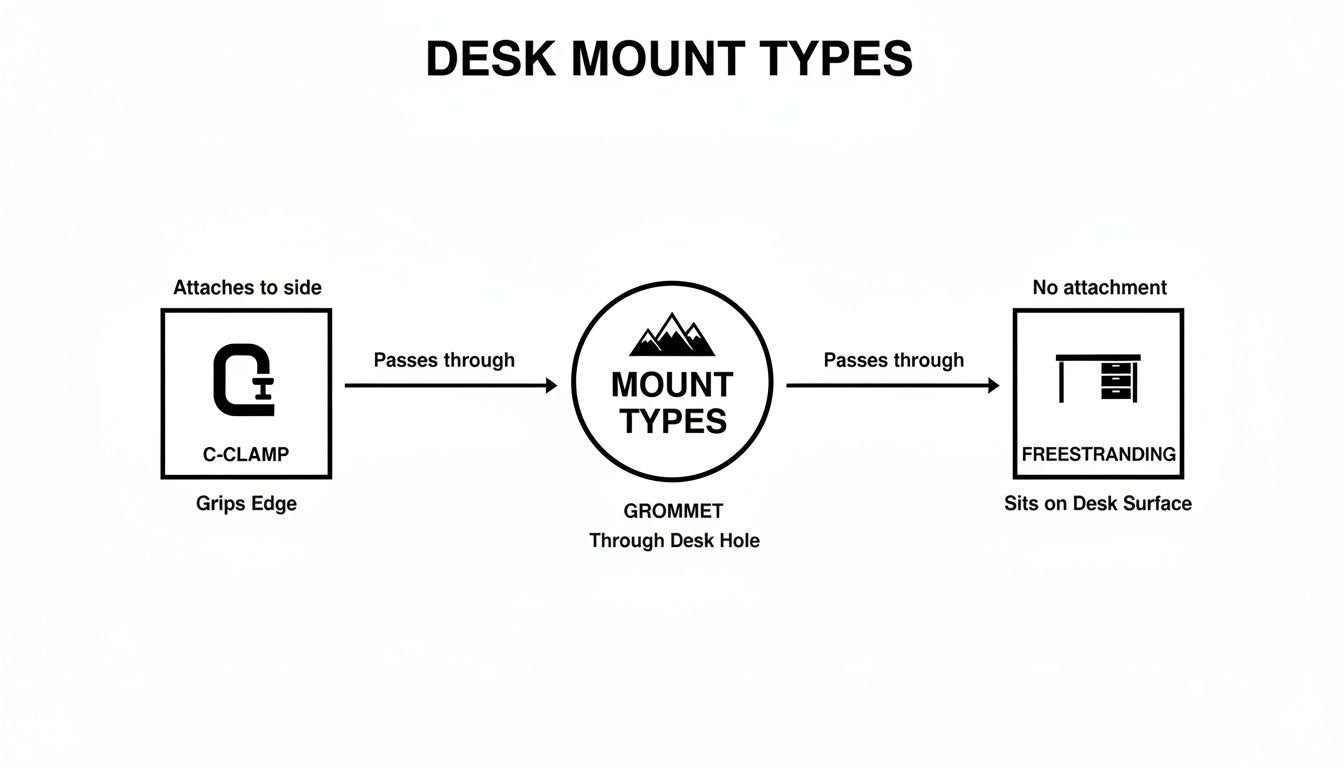
Whether you go with a C-clamp, a grommet mount, or a freestanding base, each one gives you the stable platform you need for precise ergonomic positioning.
The Power of Micro-Adjustments
Once the basics are locked in, the real beauty of a quality dual monitor arm is its ability to handle tiny adjustments throughout your day. Let's be honest, your posture isn't static, so why should your monitor setup be?
Your body’s needs change from morning to afternoon, and from sitting to standing. A quality arm allows for effortless, on-the-fly tweaks that support these shifts, helping you maintain energy and focus.
For instance, if the afternoon sun is causing glare, a quick downward tilt solves the problem instantly. Need to show a colleague something on your screen? A smooth swivel makes it happen without any fuss. EVEO's arms are built with a full range of motion, using gas spring technology that makes these crucial little tweaks feel absolutely weightless.
It’s this ability to adapt that helps you stay comfortable and focused, even during the longest workdays. For a deeper look at making your setup work for you, check out our guide on the benefits of adjustable monitor arms.
To really bring it all together, think about the bigger picture. Exploring different home office furniture layout ideas for a productive workspace can give you inspiration for creating a truly optimized environment. A well-designed arm doesn't just hold your screens; it integrates into a thoughtfully planned space where you can do your best work, free from physical discomfort. Taking a few minutes to get this right isn't just about organizing your desk—it’s an investment in your long-term health and productivity.
Achieving a Clean and Organized Workspace
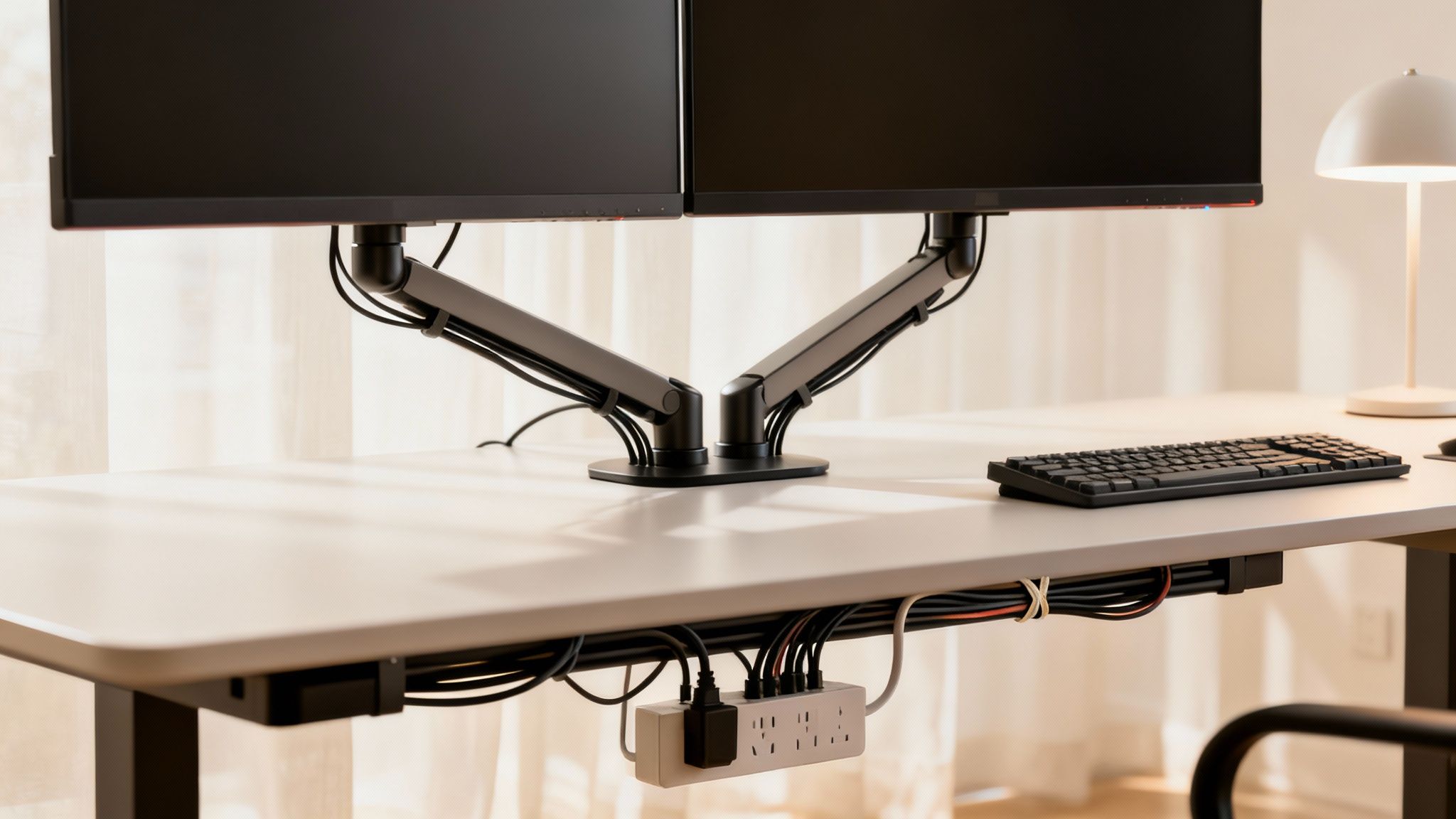
You’ve got your monitors perfectly positioned, but there's one last boss to defeat: the spaghetti monster of cables. A cluttered desk isn't just an eyesore; it can genuinely make it harder to focus and add a low-level hum of stress to your day. Taming those wires is the final, crucial step to a truly professional setup.
The best monitor arm for dual monitors will always have a plan for your cables. Look for models with built-in channels or clips—these are designed to be a hidden highway for your wires. They guide everything neatly along the arm and down behind your desk, instantly giving you back a clean, functional surface.
Taming the Wires with Integrated Channels
Think of your arm's cable management as the framing inside a wall; it keeps all the important stuff hidden and organized. Instead of letting power cords and display cables dangle everywhere, you can run them securely inside the arm itself. The end result is a setup that looks almost wireless.
This is something we really focused on when designing EVEO arms. The channels are easy to access, making it simple to tuck every wire out of sight. The technology should just disappear, letting you focus on your work, not the mess.
A clean, organized desk isn't just a luxury—it's a productivity tool. By eliminating visual distractions like tangled cables, you create an environment that promotes clarity and concentration, allowing you to perform at your best.
A Holistic Approach to Cable Organization
Great cable management doesn't stop at the monitor arm. The arm gets the cables from your screens to the desk, but what happens after that? This is where a complete strategy comes into play.
Combining your monitor arm with a few other tools creates a truly seamless system. For example:
- Cable Raceways: These stick to the underside of your desk, creating a hidden tunnel for power strips and any excess wiring.
- Velcro Ties: Perfect for bundling the cables together as they come down from the arm, keeping them from splitting off and making a new mess.
- Cable Sleeves: These fabric tubes are great for grouping multiple cords into one neat package, especially for the final run from your desk to the wall.
This layered approach makes sure every inch of wiring is accounted for, creating an environment that’s completely tidy. To get a better handle on this, check out our guide on creating a comprehensive under-desk cable management system.
And why stop there? A great setup is more than just clean cables. For a wider view on creating a workspace you'll actually love spending time in, explore these transformative office study room ideas. It’s all about tying your ergonomic gear into a bigger vision for your space.
Dual monitor arms are becoming a new standard, and for good reason. They can reduce desk clutter by 40% and help you switch between tasks 20-30% faster. For professionals, that means better cable management is a must-have feature—something EVEO integrates right into the design. A proper dual setup also helps cut down on visual fatigue by 25%, making it a smart investment for your productivity and your health.
Getting Set Up: A Quick Guide to Installation and Troubleshooting
Don't let the thought of setting up a monitor arm intimidate you. It’s far simpler than it looks, and a well-designed arm can be fully installed in less time than it takes to brew a pot of coffee. Think of it like putting together a simple piece of furniture—you just follow the steps and build from the ground up.
With a good plan, you’ll have your new dual-monitor setup ready to go in minutes. Let's walk through a typical installation and cover a few quick fixes for common hiccups you might run into along the way.
A Quick Installation Walkthrough
Most quality dual monitor arms, especially thoughtfully designed ones like EVEO’s, share a straightforward assembly process. By tackling it one step at a time, you can guarantee a sturdy and reliable setup.
-
Mount the Base: First things first, decide if you're using the C-clamp or the grommet mount. Attach your choice to the main pole, but don’t crank it down just yet. Get it positioned on your desk where you want it, then tighten the clamp or bolt until it’s rock-solid with no wobble.
-
Attach the Arms: Now, slide the arm segments onto the central pole. You can usually set the rough height you want for the arms at this stage before locking them in place with a collar or set screw.
-
Mount the VESA Plates: It’s much easier to do this part with your monitors lying face-down on your desk (on a soft towel, of course). Grab the VESA plates and screw them onto the back of your monitors.
-
Hang the Monitors: This is the satisfying final step. Just lift each monitor and slide the attached plate onto the end of its arm. Good monitor arms have a simple slide-and-lock or quick-release system, making this a surprisingly easy one-person job.
Solving Common Setup Problems
Even a perfect installation might need a few tweaks to feel just right. Here’s how to handle the most common issues people face.
Help! My monitor keeps drooping. Nine times out of ten, this is just a tension problem. Your gas spring arm has a small adjustment screw, usually on the upper arm. If the monitor sinks because it's too heavy, grab the Allen key and turn the screw toward the “+” symbol. This increases the tension. If your monitor is too light and keeps floating up, turn it toward the “−” symbol to decrease tension until it stays put.
How do I get my two different-sized monitors perfectly level? Getting that seamless, edge-to-edge alignment is the whole point! A truly great monitor arm will have independent adjustments for each screen. If one monitor sits just a bit lower than the other, look for a fine-tuning height adjustment right on the VESA plate mount. A few small turns are all it takes to get them perfectly aligned.
My monitor won’t hold its tilt angle. What do I do? This is another simple tension fix, but for the tilt joint instead of the main arm. Find the bolt right at the pivot point behind the VESA plate. Give it a small tighten with your Allen key, and it will add just enough friction to hold your preferred tilt angle without any slipping.
Getting comfortable with these little adjustments is what turns a good setup into a great one. Once you know how to dial in the tension and alignment, you’ll have a workspace that feels custom-built just for you.
Got Questions About Dual Monitor Arms?
Even after seeing all the benefits, you probably still have a few questions rolling around in your head. That’s completely normal. Choosing the right dual monitor arm is a big deal for your workspace, and getting the little details sorted out now means you’ll love your setup for years to come.
Let's walk through some of the most common questions we get. This should help clear up any confusion and give you the confidence to pick the perfect arm for your desk.
Can I Use a Dual Arm for Two Different Sized Monitors?
You bet. In fact, this is one of the biggest advantages of a well-designed dual monitor arm. Most modern arms, including ours at EVEO, are built with fully independent articulation. Think of it like each arm having its own shoulder and elbow joint—they move completely on their own.
This means you can easily mount a 24-inch vertical monitor right next to a 27-inch landscape one without a hitch. The only real rule is that both monitors need to be within the arm's weight and size limits. For instance, if an arm says it can hold two 32-inch screens up to 17.6 lbs each, your mismatched pair just needs to stay under those numbers.
Once they're mounted, you can tweak the height, tilt, and angle of each one separately until they line up perfectly, creating a single, seamless viewing area. It's the perfect solution if you're upgrading one monitor at a time or use different screens for different kinds of work.
Will a Dual Monitor Arm Work with My Curved or Ultrawide Monitor?
Generally, yes, but you need to be a bit more careful here. Curved and ultrawide screens are fantastic, and most quality monitor arms are designed to handle them. The tricky part with a curved monitor is its depth—the curve pushes the monitor's center of gravity forward, which puts more leverage and stress on the arm's tilt joint.
Because of this, paying close attention to the weight capacity is non-negotiable. Your curved monitor's weight must be comfortably within the arm's limit to prevent that annoying, slow sag over time. With ultrawide screens, you have to watch both the weight and the maximum screen size. They're so wide that the arm needs enough strength and reach to support them without wobbling.
Before you buy, always double-check two things:
- VESA Compatibility: Flip your monitor around and make sure it has a standard VESA mounting pattern (it’s almost always 75x75mm or 100x100mm).
- Product Specs: Read the monitor arm’s specifications to confirm it explicitly supports the size and weight of your screen.
How Do I Know If a Mount Will Fit My Desk?
This is a crucial question, but thankfully, all you need is a tape measure. The answer depends on whether you plan to use a C-clamp or a grommet mount.
If you’re going with a C-clamp, you just need to measure how thick your desk is. Every manufacturer lists a clear range, like 0.4" to 3.5". As long as your desk's thickness is within that range and you have a solid, flat edge for it to grip onto, you're all set.
For a grommet mount, you’ll need a hole going through your desktop. Check the arm's specs for the required hole diameter, which is usually somewhere between 0.4" and 2.4". If your desk already has a cable management hole, just measure it. If not, and you have a desk made of wood or particleboard, you can easily drill one yourself.
Is a Gas Spring Arm Better Than a Mechanical One?
For most people, the answer is a definite yes. A gas spring arm uses a pneumatic cylinder inside—much like the ones that hold up the hatchback on an SUV—to perfectly counterbalance the weight of your monitor. This is what gives you that smooth, "floating" adjustment you see in high-end setups. You can literally move your screens up, down, forward, and back with a single fingertip.
That kind of fluid motion is a game-changer if you switch between sitting and standing, frequently share your screen with a colleague, or just like to make small ergonomic adjustments throughout the day.
Mechanical spring arms get the job done and are often a bit friendlier on the wallet. But adjusting them usually means tightening or loosening a screw, and it takes a lot more effort to get them into position. For the absolute best ergonomic experience and effortless daily use, a gas spring system is hands-down the way to go for a modern dual monitor setup.
Ready to build a workspace that’s organized, ergonomic, and incredibly productive? The EVEO Dual Monitor Arm is engineered to provide the stability and fluid motion you need for the perfect setup. Transform your desk and discover the difference today.
How to Clean Laptop Screen Safely: how to clean laptop screen safely Guide
Finding the Best Record Cleaning Solution for Your Vinyl